Nervecentre V9.0 Help for Users
Overview of Messaging
Nervecentre Messaging allows you to communicate with your colleagues in individual messages, which work like emails, and in chat rooms.
 Overview of Messaging
From Messaging, you can view and manage messages and chat rooms.

|
|
View and send messages, and updates in chat room threads. |
|
Message Settings |
View and manage settings for messaging. The options you see depend on your permissions. |
From Messaging > , you can send, receive, and manage messages and chat room threads.
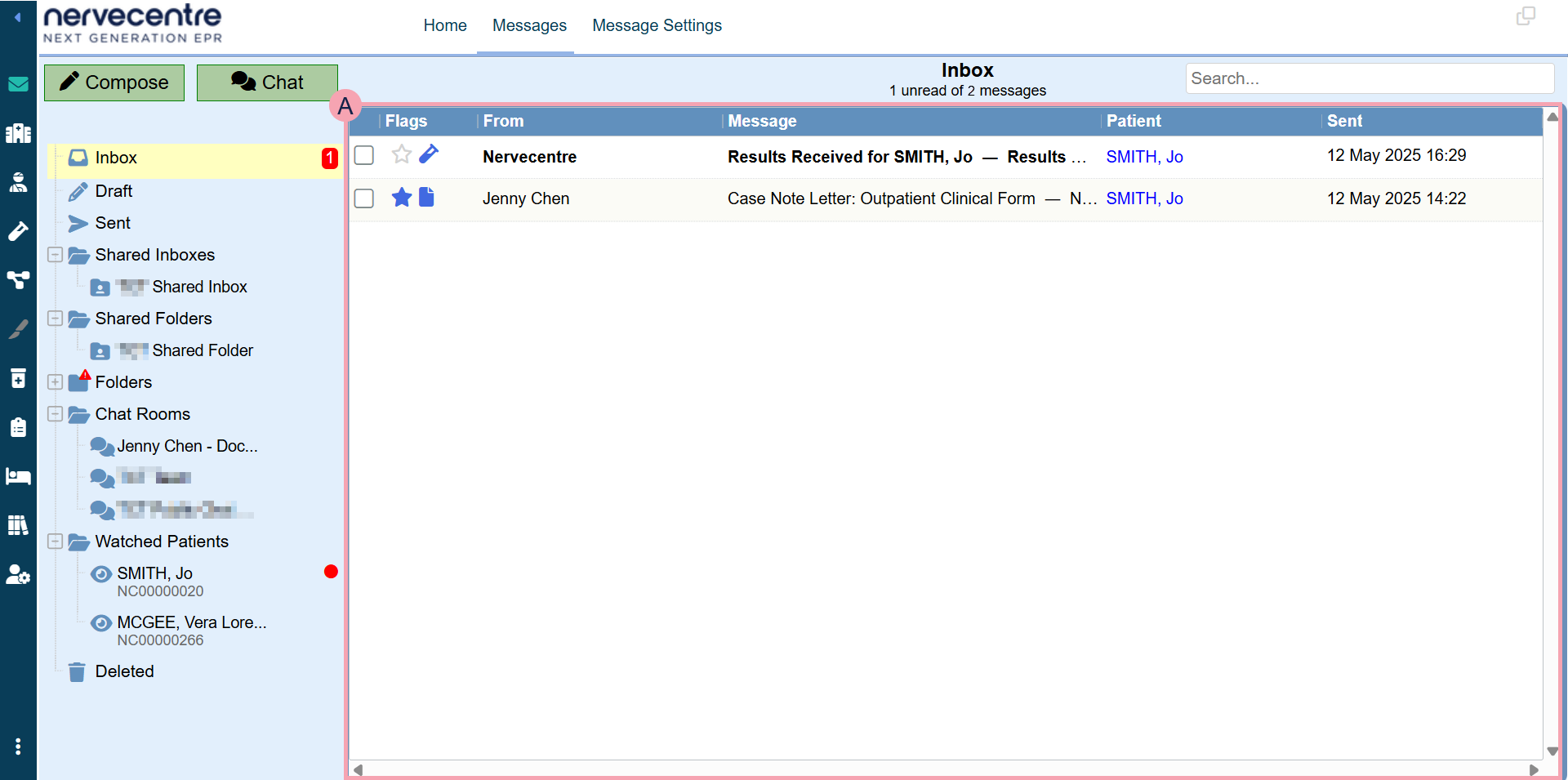
|
Compose |
Select to create and send a new message. |
|
Chat |
Select to create an unnamed private chat room. This is intended for one-to-one conversations, but you can add more than one colleague to the chat room. |
|
Search |
Type to search for messages with that text in the body of the message. You must enter at least three characters to search. Nervecentre doesn't search for messages with that text in the subject of the message. |
|
|
Shows the messages or chat room threads for the selected folder or chat room. Different types of message display different symbols. |
|
Inbox |
Select to view messages in your inbox. |
|
1 |
A count of unread messages appears next to any folder that contains unread messages. |
|
Draft |
Select to view messages you saved as drafts. You can edit draft messages and send them. |
|
Sent |
Select to view messages you sent. |
|
Shared Inboxes |
Select to view messages in shared inboxes. Anyone with access to the shared inbox can view messages in this inbox. |
|
Shared Folders |
Select to view messages in shared folders. You can move messages to shared folders. Anyone with access to the folder can view messages in this folder. |
|
Folders |
Select to view messages in your personal folders. You can move messages to your folders. Read more about moving messages to folders Mouseover and select + to create a new folder. |
|
|
Displays next to folders that contain messages or updates that have not yet been read. |
|
Chat Rooms |
Chat rooms you can access. Select a chat room to view updates in that chat room. Mouseover and select + to create a named public or private chat room, or join a public chat room. Read more about creating a named private chat room |
|
Watched Patients |
Select to view a chat room for a specific patient you are watching. These chat rooms are called watch groups. |
|
|
Displays next to chat rooms and patients with an update you haven't read. |
|
Deleted |
Select to view messages you have deleted. |
 Message Settings
From Messaging > Message Settings, you can view and manage settings for messaging.
The options you see depend on your permissions.
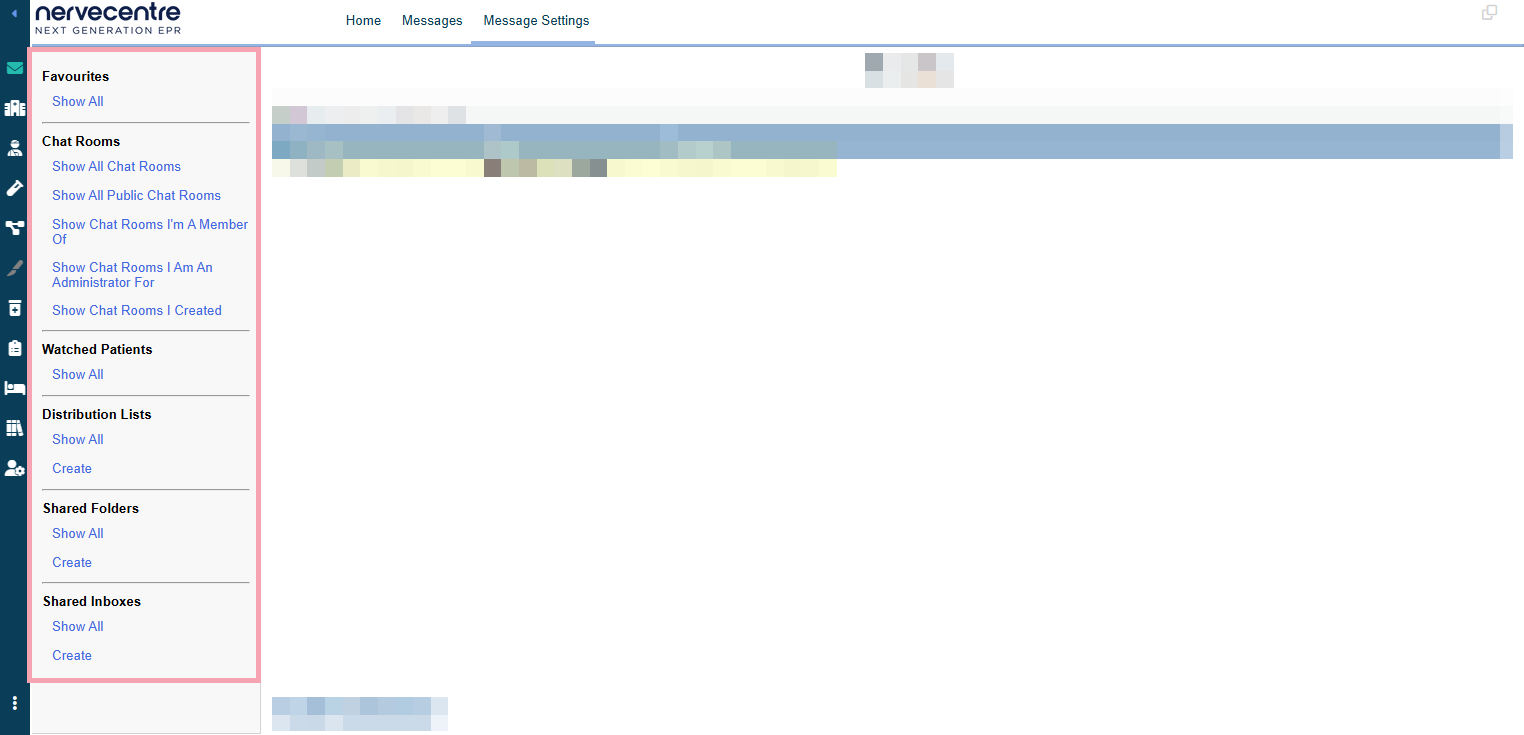
|
Favourites > Show All |
Select to view and manage your favourite recipients. |
|
Show All Chat Rooms |
Select to view and manage all chat rooms. |
|
Show All Public Chat Rooms |
Select to view and manage all public chat rooms. |
|
Show Chat Rooms I'm A Member Of |
Select to view and manage chat rooms you are a member of. |
|
Show Chat Rooms I Am An Administrator For |
Select to view and manage chat rooms you are the administrator of. |
|
Show Chat Rooms I Created |
Select to view and manage chat rooms you created. |
|
Watched Patients > Show All |
Select to view the patients each person is watching. |
|
Distribution Lists > Show All |
Select to view and manage distribution lists. |
|
Distribution Lists > Create |
Select to create a new distribution list. |
|
Shared Folders > Show All |
Select to view and manage shared folders. |
|
Shared Folders > Create |
Select to create a new shared folder. |
|
Shared Inboxes > Show All |
Select to view and manage shared inboxes. |
|
Shared Inboxes > Create |
Select to create a new shared inbox. |
Did you find this article helpful? Yes No
Sorry about that. Our help is a work in progress and we welcome any feedback.
Why wasn't this helpful? Please select one reason:
Great!
Thanks for taking the time to give us some feedback.