Nervecentre V9.0 Help for Users
Messaging with colleagues
You can send messages to your colleagues on a desktop or mobile. Messages behave in a similar way to emails. When you send a message to a colleague, it goes to their inbox.
You can send a message to one or more people. You can choose to send messages directly, and copy messages to colleagues.
Messages have a subject and a main body. The body supports various formatting options that allow you to make the content of the message as clear and readable to the recipient as possible.
Messaging with colleagues on a mobile
 Overview of a new message on iOS
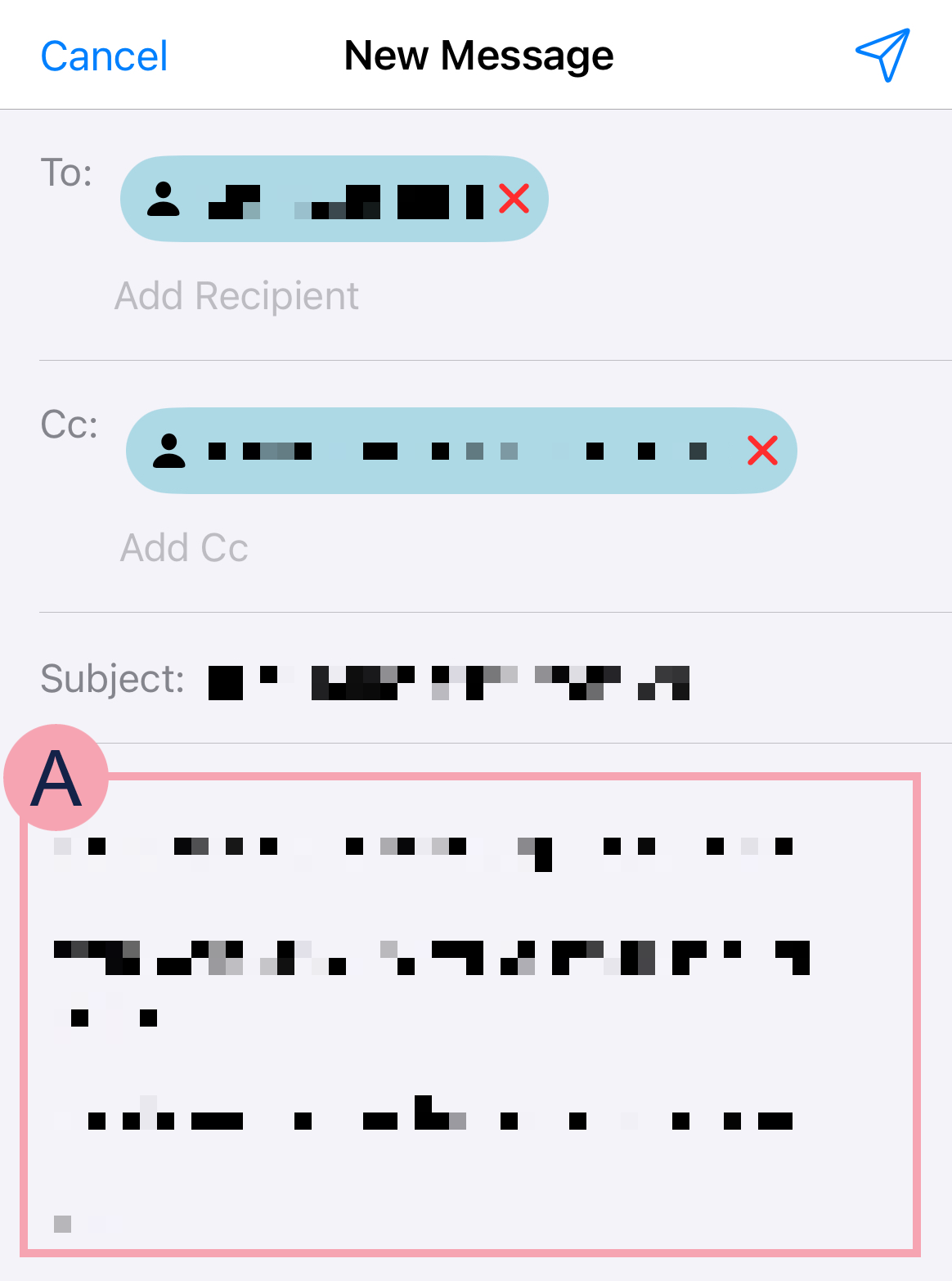
When you create a new message, the following screen appears.
|
Cancel |
Select to save the message as a draft, or to delete the message. You can view drafts from Messaging > Mail > Folders > Draft. |
|
|
Select to send the message to the specified recipients. |
|
To |
Enter the name of the recipient you want to send the message to. A list of recipients appears. You can add more than one recipient. To remove a recipient, select . |
|
Cc |
Enter the name of a recipient you want to send a copy of the message to. A list of recipients appears. You can add more than one recipient. To remove a recipient, select . You can't send a blind copy of a message. |
|
Subject |
Enter a brief description for your message. You must enter a subject to send a message. |
|
|
Enter your message. |
 Overview of a new message on Android
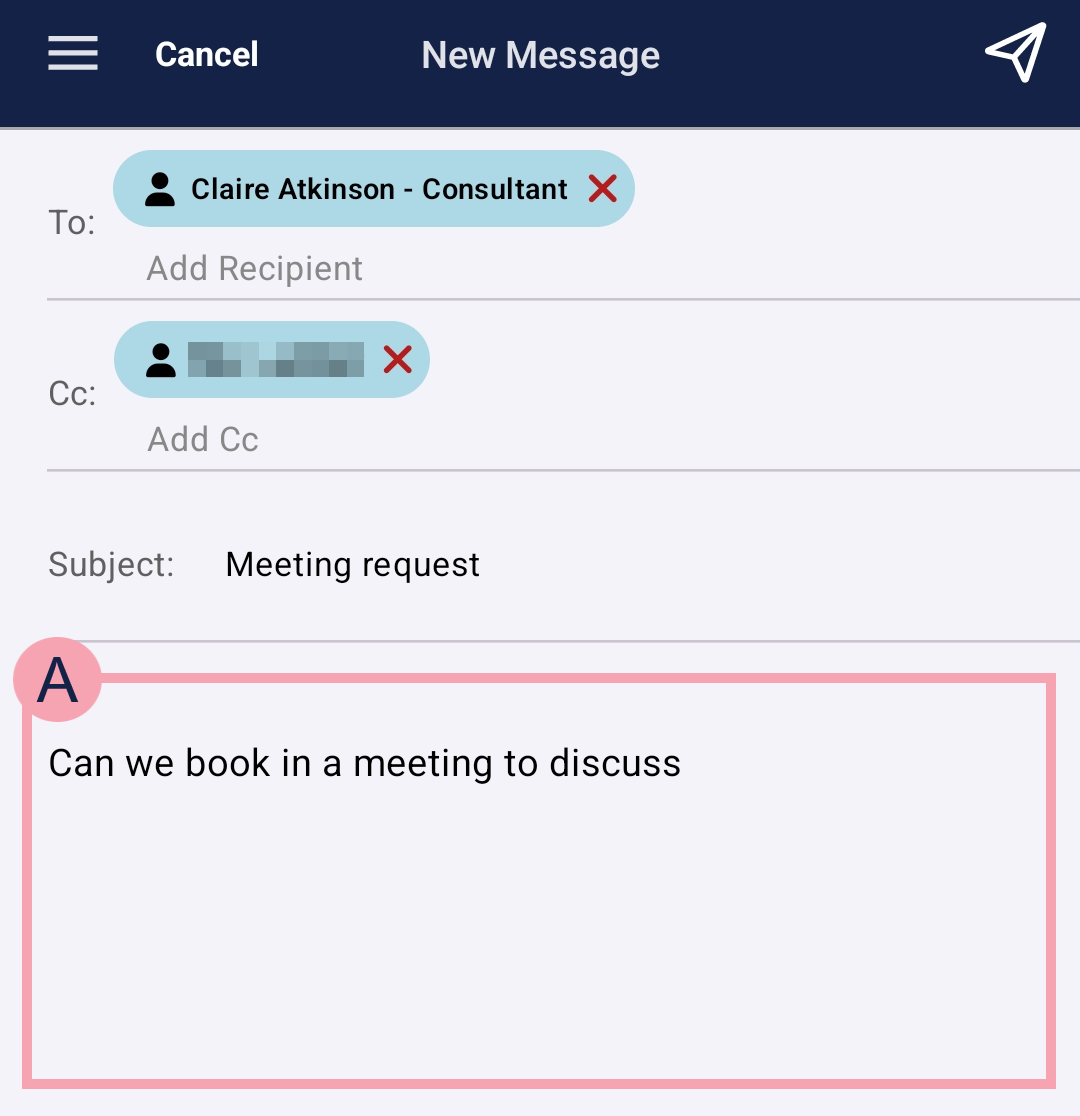
When you create a new message, the following screen appears.
|
Cancel |
Select to save the message as a draft, or to delete the message. You can view drafts from Messaging > Mail > Folders > Draft. |
|
|
Select to send the message to the specified recipients. |
|
To |
Enter the name of the recipient you want to send the message to. A list of recipients appears. You can add more than one recipient. To remove a recipient, select . |
|
Cc |
Enter the name of a recipient you want to send a copy of the message to. A list of recipients appears. You can add more than one recipient. To remove a recipient, select . You can't send a blind copy of a message. |
|
Subject |
Enter a brief description for your message. You must enter a subject to send a message. |
|
|
Enter your message. |
Sending a new message
-
From Messaging > Mail, select .
-
From To, enter and select the recipients of the message.
-
Optional: from Cc, enter and select recipients to receive a copy of the message.
You might send a copy of the message to a recipient if you want them to be informed about something, but you don't need a direct response.
You can't send a blind copy of a message.
-
Enter a subject for your message.
You must enter a subject to send a message.
-
Enter a message.
-
Send, save, or discard the message.
-
To send the message, select .
-
To save the message as a draft, select Cancel > Save Draft.
You can view drafts from Messaging > Mail > Folders > Draft
-
To discard the message, select Cancel > Delete Draft.
-
Sending a message about a patient's investigation
When you place an order for an investigation, you can ask Nervecentre to send you a message when it receives an update about the order, or the results.
Read more about placing an order
Read more about getting notifications about a patient's results
Editing and sending draft messages
-
From Messaging > Mail > Folders > Draft, select a message you want to edit and send.
-
Edit the message.
-
To send the message, select .
Replying to messages
-
From Messaging > Mail:
-
Select a message.
-
Or, select Folders, select a folder or inbox, then select a message.
-
-
To reply to the message:
-
Select to reply to the person who sent the message.
-
Select to reply to the person who sent the message, and all recipients of the message.
-
-
Enter a message.
-
Send, save, or discard the message.
-
To send the message, select .
-
To save the message as a draft, select Cancel > Save Draft.
You can view drafts from Messaging > Mail > Folders > Draft
-
To discard the message, select Cancel > Delete Draft.
-
Forwarding messages
-
From Messaging > Mail:
-
Select a message.
-
Or, select Folders, select a folder or inbox, then select a message.
-
-
To forward the message, select .
-
From To, enter and select the recipients of the message.
-
Optional: from Cc, enter and select recipients to receive a copy of the message.
You might send a copy of the message to a recipient if you want them to be informed about something, but you don't need a direct response.
You can't send a blind copy of a message.
-
Optional: edit the subject of your message.
By default, the subject of the original message has the prefix 'FWD:'.
-
Optional: enter a message to go with the original message.
You can't edit the content of the original message you are forwarding.
-
Send, save, or discard the message.
-
To send the message, select .
-
To save the message as a draft, select Cancel > Save Draft.
You can view drafts from Messaging > Mail > Folders > Draft.
-
To discard the message, select Cancel > Delete Draft.
-
Moving messages to a folder
-
From Messaging > Mail:
-
Select a message.
-
Or, select Folders, select a folder or inbox, then select a message.
-
-
To add a folder:
-
On iOS, select
 .
. -
On Android, select .
-
-
Select the appropriate folder or shared inbox.
Anyone with access to the folder or inbox can view the message. For example, if you move a message to a shared folder, anyone with access to the shared folder can view the message.
If you move messages from a shared inbox or folder, to a personal inbox or folder, people with access to the shared inbox or folder can no longer access the messages you moved. Nervecentre doesn't send a notification to tell them the messages moved.
Deleting messages
You can delete one message at a time on a mobile. You can delete more than one message on a desktop.
-
From Messaging > Mail:
-
Select a message.
-
Or, select Folders, select a folder or inbox, then select a message.
-
-
Select .
Recalling messages
If you sent a message in error, or you no longer want the recipients to read the message, you can recall the message.
-
From Messaging > Mail > Folders > Sent, select a message you want to recall.
-
Select > Recall Email.
A dialogue box appears.
-
If a recipient has not read the message, the message is deleted for that recipient, and they can no longer read the message.
-
If a recipient has read the message, the message isn't deleted, but when they view the message, a warning tells them that the message was recalled.
-
-
To confirm you want to recall the message, select Yes.
A message displays that tells you if the message was deleted, or marked as 'recalled'.
Marking a message as 'for follow-up'
-
From Messaging > Mail:
-
Select a message.
-
Or, select Folders, select a folder or inbox, then select a message.
-
-
Select .
Marking a message as 'unread'
When you open a message, the status automatically changes from 'unread' to 'read'. You can mark a message as 'unread'.
-
From Messaging > Mail:
-
Select a message.
-
Or, select Folders, select a folder or inbox, then select a message.
-
-
Select Unread.
Messaging with colleagues on a desktop
Overview of a new message
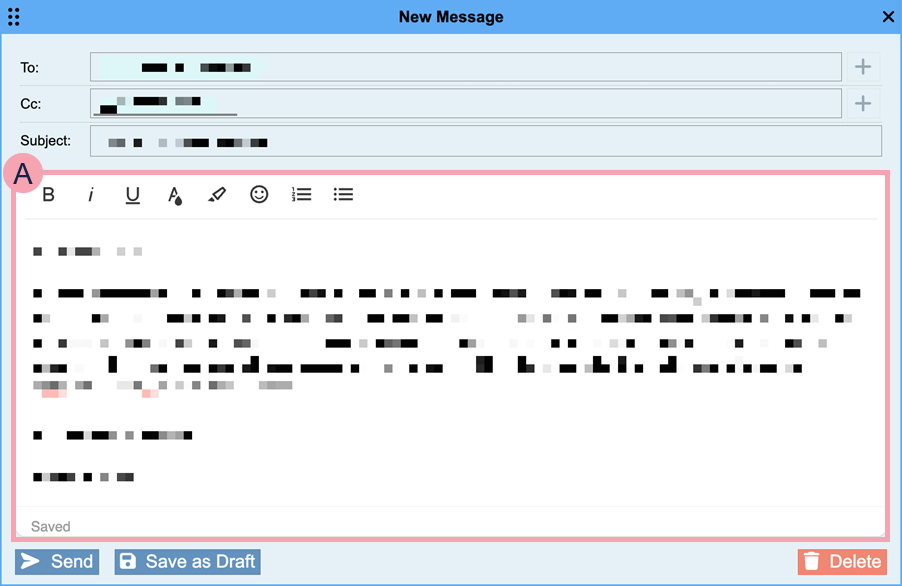
When you create a new message, a dialogue box appears.
|
To |
Enter the name of the recipient you want to send the message to. A list of recipients appears. Read more about the types of recipient To search for a recipient, select +. |
|
Cc |
Enter the name of a recipient you want to send a copy of the message to. A list of recipients appears. Read more about the types of recipient To search for a recipient, select +. You can't send a blind copy of a message. |
|
Subject |
Enter a brief description for your message. You must enter a subject to send a message. |
|
|
Enter your message. You can choose options to format the message. |
|
Send |
Select to send the message to the specified recipients. You can view the message from Messaging > > Sent. |
|
Save as Draft |
Select to save the message as a draft. You can view the message from Messaging > > Draft. |
|
Delete |
Select to discard the message. You can't retrieve this message, or view the message from Messaging > > Deleted. |
Sending a message from
-
From Messaging > , select Compose.
A dialogue box appears.
-
From To, enter and select the recipients of the message.
To search for a recipient, select +.
-
Optional: from Cc, enter and select recipients to receive a copy of the message.
To search for a recipient, select +.
You might send a copy of the message to a recipient if you want them to be informed about something, but you don't need a direct response.
-
Enter a subject for your message.
-
Enter a message.
You can format the text in the message by selecting options from the bar above the message.
-
Send, save, or discard the message.
-
To send the message, select Send.
-
To save the message as a draft, select Save as Draft.
-
To discard the message, select Delete.
-
Sending a message from the clipboard
You can add items to your clipboard and send them in a message.
Read more about adding items to the clipboard
-
Open the patient's record.
-
From Inpatients, select Patient List > double-click on a patient's name > Patient Detail.
-
From Outpatients, select Clinic List > double-click on a patient's name > Patient Detail.
-
-
Select .
-
To add an item to the clipboard, select .
-
Select items in the clipboard that you want to send.
-
Select .
A dialogue box appears containing a message you can edit. By default, the message contains a table of any information you selected from the clipboard.
-
From To, enter and select the recipients of the message.
To search for a recipient, select +.
-
Optional: from Cc, enter and select recipients to receive a copy of the message.
To search for a recipient, select +.
You might send a copy of the message to a recipient if you want them to be informed about something, but you don't need a direct response.
-
Enter a subject for the message.
-
Optional: edit the message.
You can format the text in the message by selecting options from the bar above the message.
-
Send, save, or delete the message.
-
To send the message, select Send.
-
To save the message as a draft, select Save as Draft.
-
To discard the message, select Delete.
-
Sending a link to a letter in a message
At the end of some forms, there is a field called Letter. From this field, you can add your signature. Depending on your organisation and permissions, you can also send a link to a letter in a message. For example, a message to office administrators.
-
Open the patient's record.
-
From Inpatients, select Patient List > double-click on a patient's name > Patient Detail.
-
From Outpatients, select Clinic List > double-click on a patient's name > Patient Detail.
-
-
Select Case Notes.
-
From the list on the left, select folders and entries until you find a form.
Forms show .
-
Select the form.
-
If the form is already submitted, reopen the form.
-
Complete the form, including all mandatory fields.
Mandatory fields are marked .
-
At the bottom of the form, find the field called Letter.
The field's name depends on your organisation.
-
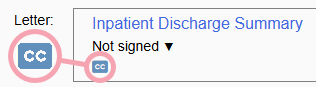
To send a copy of the letter by email, select CC.
A dialogue box appears.
-
From To, enter and select the recipients of the message.
To search for a recipient, select +.
-
Optional: from Cc, enter and select recipients to receive a copy of the message.
To search for a recipient, select +.
You might send a copy of the message to a recipient if you want them to be informed about something, but you don't need a direct response.
-
Optional: edit the subject of the message.
-
Enter a message.
You can format the text in the message by selecting options from the bar above the message.
-
Save or delete your message.
-
To save your message, select Schedule to send with letter.
Nervecentre sends your message when it sends the letter, or another user sends the letter and marks the letter as sent.
-
To discard your message, select Delete.
-
-
Optional: to edit a saved message before the letter is sent, select CC from the form.
Sending a message about a patient's investigation
-
Open the patient's record.
-
From Inpatients, select Patient List > double-click on a patient's name > Patient Detail.
-
From Outpatients, select Clinic List > double-click on a patient's name > Patient Detail.
-
-
Select Investigations > .
-
Select an order.
Information appears on the right.
-
Select > Forward.
A dialogue box appears containing a message you can edit. By default, the message contains a table of results information. If there are no results, the table is blank.
The message also includes two links: one to view more details about the order, and another to view the order in the patient's record. You can't open these links until you send the message.
-
From To, enter and select the recipients of the message.
To search for a recipient, select +.
Depending on your permissions, you can send a message to a shared inbox.
-
Optional: from Cc, enter and select recipients to receive a copy of the message.
To search for a recipient, select +.
You might send a copy of the message to a recipient if you want them to be informed about something, but you don't need a direct response.
Depending on your permissions, you can send a copy of the message to a shared inbox.
-
Optional: edit the subject of the message.
-
Optional: edit the message.
You can format the text in the message by selecting options from the bar above the message.
-
Send, save, or delete the message.
-
To send the message, select Send.
-
To save the message as a draft, select Save as Draft.
-
To discard the message, select Delete.
-
Editing and sending draft messages
-
From Messaging > > Draft, double-click on a message you want to edit and send.
A dialogue box appears.
-
Edit the message.
-
To send the message, select Send.
Replying to messages
-
From Messaging > , select any folder or inbox that contains messages.
-
Double-click on a message.
-
To reply to the message:
-
Select to reply to the person who sent the message.
-
Select to reply to the person who sent the message, and all recipients of the message.
A dialogue box appears.
-
-
Enter a message.
You can format the text in the message by selecting options from the bar above the message.
-
Send, save, or discard the message.
-
To send the message, select Send.
-
To save the message as a draft, select Save as Draft.
-
To discard the message, select Delete.
-
Forwarding messages
-
From Messaging > , select any folder or inbox that contains messages.
-
Double-click on a message.
-
To forward the message, select .
A dialogue box appears.
-
From To, enter and select the recipients of the message.
To search for a recipient, select +.
-
Optional: from Cc, enter and select recipients to receive a copy of the message.
To search for a recipient, select +.
You might send a copy of the message to a recipient if you want them to be informed about something, but you don't need a direct response.
-
Send, save, or discard the message.
-
To send the message, select Send.
-
To save the message as a draft, select Save as Draft.
-
To discard the message, select Delete.
-
Moving messages to a folder or inbox
-
From Messaging > , select any folder or inbox that contains messages.
-
To move:
-
A single message, double-click on the message.
-
One or more messages, select one or more messages.
-
-
Select .
-
Select a folder or inbox to move the message to.
Anyone with access to the folder or inbox can view the message. For example, if you move a message to a shared folder, anyone with access to the shared folder can view the message.
If you move messages from a shared inbox or folder, to a personal inbox or folder, people with access to the shared inbox or folder can no longer access the messages you moved. Nervecentre doesn't send a notification to tell them the messages moved.
Deleting messages
-
From Messaging > , select any folder or inbox that contains messages.
-
To delete:
-
A single message, double-click on the message.
-
One or more messages, select one or more messages.
-
-
Select .
Recalling messages
If you sent a message in error, or you no longer want the recipients to read the message, you can recall the message.
-
From Messaging > , select Sent.
-
To recall:
-
A single message, double-click on the message.
-
One or more messages, select one or more messages.
-
-
Select .
A dialogue box appears.
-
If a recipient has not read the message, the message is deleted for that recipient, and they can no longer read the message.
-
If a recipient has read the message, the message isn't deleted, but when they view the message, a warning tells them that the message was recalled.
-
-
To confirm you want to recall the message, select Yes.
Marking a message as 'for follow-up'
-
From Messaging > , select any folder or inbox that contains messages.
-
To mark a message as 'for follow-up':
-
Select .
-
Double-click on the message to open it, then select .
-
Marking a message as 'unread'
When you open a message, the status automatically changes from 'unread' to 'read'. You can mark a message as 'unread'.
-
From Messaging > , select any folder or inbox that contains messages.
-
Double-click on a message.
-
Select Unread.
Receiving messages when a patient is referred to a service team
Depending on your organisation, Nervecentre can send a message to a shared inbox when a patient is referred to a service team. For example, when a patient is referred to a specific midwifery team, Nervecentre can send a message to the shared inbox for the midwifery team.
You can view these messages from the shared inbox for the team.
-
From Messaging > > Shared Inboxes, select the shared inbox for the team.
Messages for new referrals display .
-
Select a message.
-
From the message, you can:
-
Select to view the patient's record from Clinical.
-
Select View Referral to view the patient's referral from Patient admin > Show pathways > Referrals.
-
Receiving messages about tasks
Depending on your organisation, Nervecentre can send a message to one or more users when:
-
A task is created, completed, closed, cancelled, or marked late
-
A user accepts the task, or starts the task
-
The user who accepted the task then rejects it
-
No one is available to offer the task to
-
All users offered the task reject it
-
The task's description changes
You can view these messages, but not reply to them.
-
From Messaging > , select a message with the sender Nervecentre.
-
From the message, select to view the patient's record from Clinical.
Did you find this article helpful? Yes No
Sorry about that. Our help is a work in progress and we welcome any feedback.
Why wasn't this helpful? Please select one reason:
Great!
Thanks for taking the time to give us some feedback.