Nervecentre V9.0 Help for Users
Sending updates in a chat room
You can send updates in a chat room on a desktop or mobile. Chat rooms allow you to communicate with colleagues by posting updates into a conversation thread that all members of the chat room can view and respond to.
You can create:
-
Named public chat rooms that anyone can join
You can create these on a desktop, but not on a mobile.
-
Named private chat rooms where you can choose who joins
You can create these on a desktop, but not on a mobile.
-
Unnamed private chat rooms where you can choose who joins
These chat rooms are for one-to-one conversations, but you can add more than one person. You can create these on a desktop or mobile.
-
Chat rooms linked to a specific patient
These are called watch groups. You can create these on a desktop or mobile.
Sending updates in a chat room on a mobile
 Overview of a chat room
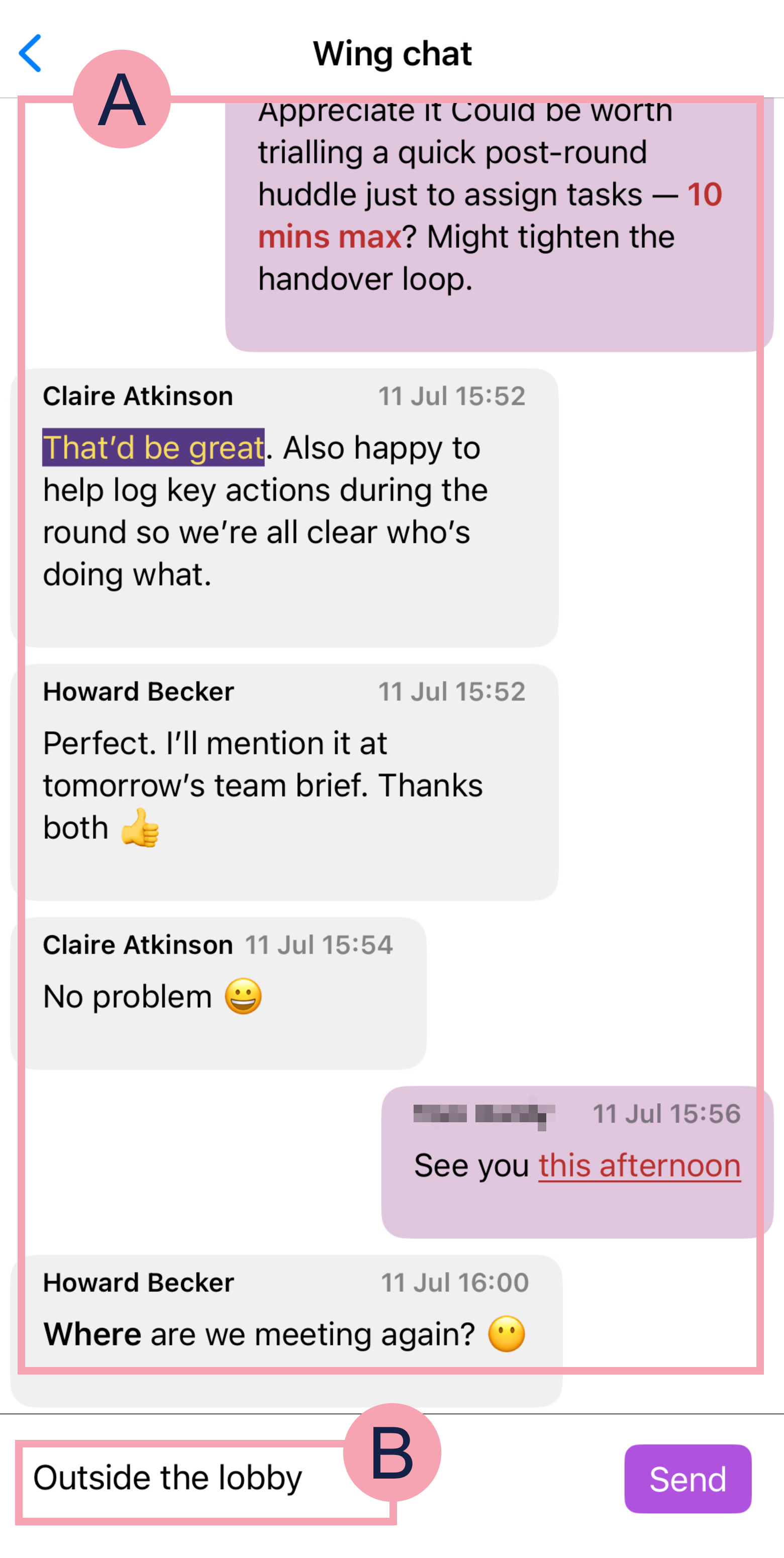
From Messaging > Chat, you can view private chat rooms, and chat rooms about specific patients. Select a chat room to send and receive updates in that chat room.
|
|
Message thread. The messages you send appear on the right. |
|
|
Enter an update. |
|
Send |
Select to send the update. |

 Creating an unnamed private chat room
-
From Messaging > Chat, select .
-
Enter the name of someone you want to add to the chat room.
-
Select their name from the list.
-
Optional: add more people to the chat room by searching for their name.
-
Select Confirm.
Sending an update in a chat room
-
From Messaging, select Chat.
-
Optional: enter the name of a chat room or the name of a watched patient to search for that chat room.
-
Select a chat room.
-
Type your update.
You can include emojis.
-
Select Send.
Leaving a chat room
You can leave a chat room so that you no longer receive updates from the chat room.
If you leave a chat room, you can't view previous updates from when you were subscribed to the chat room.
-
From Messaging, select Chat.
-
Optional: enter the name of a chat room or the name of a watched patient to search for that chat room.
-
Select a chat room.
-
Select > Confirm.
Sending updates in a chat room on a desktop
Overview of a chat room
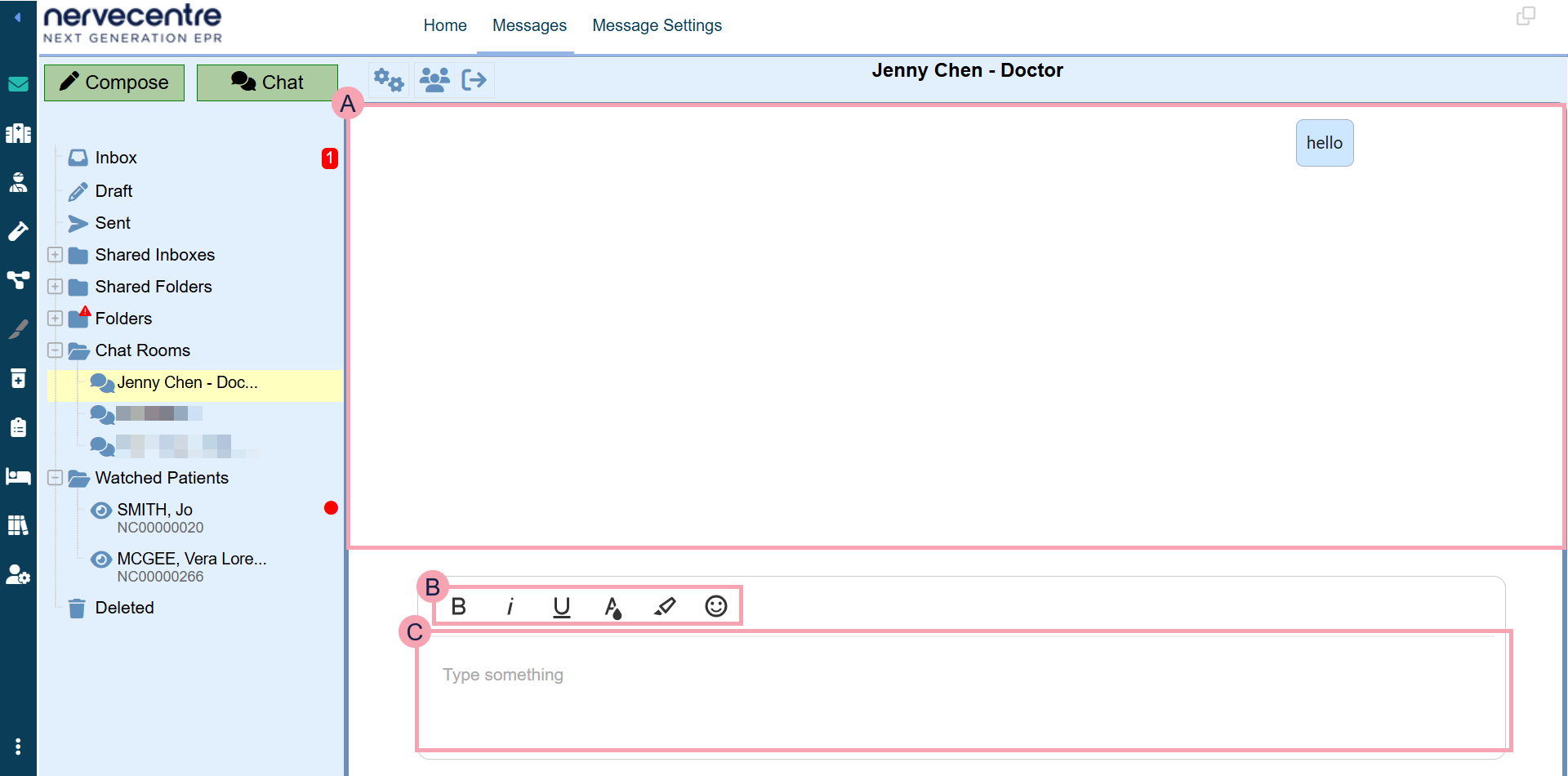
From Messaging > > Chat Rooms, you can send and receive updates in chat rooms. You can send and receive updates in a patient-specific chat room from Messaging > > Watched Patients.
|
Chat |
Select to create an unnamed private chat room. This is intended for one-to-one conversations, but you can add more than one colleague to the chat room. |
|
|
Select to rename the chat room. |
|
|
Select to add subscribers to the chat room. |
|
|
Select to leave the chat room. |
|
|
Shows the chat room thread. Your updates always appear on the right with a blue background. You can delete your updates. |
|
Chat Rooms |
Chat rooms you can access. Select a chat room to view updates in that chat room. Mouseover and select + to create a named public or private chat room, or join a public chat room. Read more about creating a named private chat room |
|
|
Displays next to chat rooms and patients with an update you haven't read. |
|
|
Formatting options for your update. |
|
|
Enter your update then press Enter to send. |
 Creating an unnamed private chat room
You can create unnamed private chat rooms that only specific people can see. You are the administrator of any chat rooms you create, which means you can choose who is in the chat room.
To create an unnamed private chat room:
-
From Messaging > , select Chat.
-
Enter the names of the people you want to add to the chat room.
-
Select Chat.
Creating a named private chat room
You can create named private chat rooms that only specific people can see. You are the administrator of any chat rooms you create, which means you can choose who is in the chat room.
To create a named private chat room:
-
From Messaging > , mouseover Chat Rooms and select + > Create Chat Room.
-
Enter a name for the chat room.
-
From Type, select Private.
You can then add subscribers to the chat room.
Creating a public chat room
You can create public chat rooms that anyone can see and join.
-
From Messaging > , mouseover Chat Rooms and select + > Create Chat Room.
-
Enter a name for the chat room.
-
From Type, select Public.
You can then add subscribers to the chat room, or people can join the chat room.
Joining a chat room
-
From Messaging > , mouseover Chat Rooms and select + > Join Chat Room.
- Select the chat room you want to join.
Sending an update in a chat room
-
From Messaging > > Chat Rooms or Watched Patients, select a chat room.
-
Enter an update.
You can format the text in your update.
-
Press Enter.
Sending items from the clipboard to a chat room
You can add items to your clipboard and send them to a named private chat room.
Read more about adding items to the clipboard
-
Open the patient's record.
-
From Inpatients, select Patient List > double-click on a patient's name > Patient Detail.
-
From Outpatients, select Clinic List > double-click on a patient's name > Patient Detail.
-
-
Select .
-
To add an item to the clipboard, select .
-
Select items in the clipboard that you want to send.
-
Select .
A dialogue box appears containing an update you can edit.
By default, the update contains the patient's name, age, date of birth, and hospital number. It also contains a table of any information you selected from the clipboard.
-
Choose who you want to send the update to.
You can choose to send the update to any private or public chat room you are a member of. Or, if you are watching the patient, you can send the update to the patient's watch group. You can't send the update to a watch group for a different patient.
-
Optional: edit the update.
-
Select Send.
Deleting an update in a chat room
You delete updates you sent to a chat room.
-
From Messaging > > Chat Rooms or Watched Patients, select a chat room.
-
Select one of the updates you sent in the chat room.
Your updates have a blue background.
-
Select Delete.
Renaming a chat room
-
From Messaging > > Chat Rooms, select a chat room.
-
Select > Rename Chat Room.
-
Enter a new name for the chat room.
Adding subscribers to a chat room
-
From Messaging > > Chat Rooms, select a chat room.
-
Select .
-
Enter the names of people you want to add to the chat room.
-
Select Save.
Leaving a chat room
You can leave a chat room so that you no longer receive updates from the chat room.
If you leave a chat room, you can't view previous updates from when you were subscribed to the chat room.
-
From Messaging > > Chat Rooms, select a chat room.
-
Select > Confirm.
Did you find this article helpful? Yes No
Sorry about that. Our help is a work in progress and we welcome any feedback.
Why wasn't this helpful? Please select one reason:
Great!
Thanks for taking the time to give us some feedback.