Nervecentre V9.0 Help for Users
Managing a specific theatre session
From Theatres > Session, you can manage a specific session. You can complete the briefing and debriefing forms, manage the staff for the session, and finalise the session.
You can also edit the session, add procedures to the session, cancel procedures in the session, release the session, confirm the session, and lock the session.
Read about adding procedures to a session
Read more about managing sessions
Managing a specific theatre session on a mobile
You can't do this on a mobile.
Managing a specific theatre session on a desktop
 Overview of Session
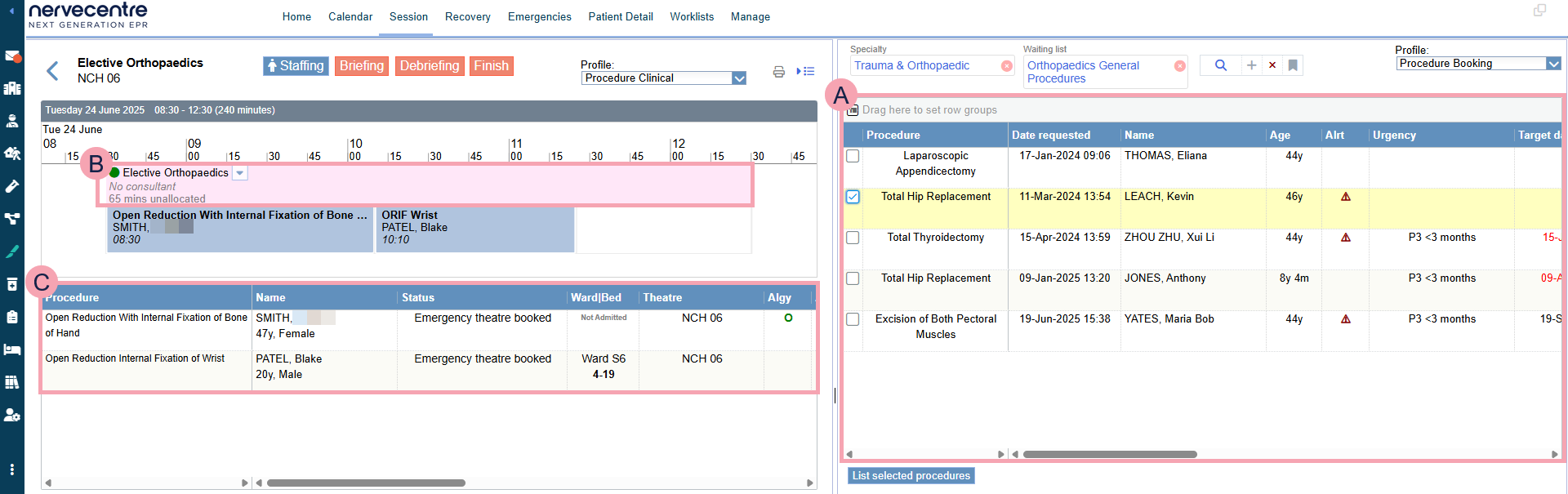
From Theatres > Session, you can manage a specific session.
|
|
Select to return to Calendar. |
|
Staffing |
Select to add and remove staff from the session. |
|
Briefing |
Select to complete the briefing form for the session. If the briefing form isn't complete, this is red. If the briefing form is complete, displays. |
|
Debriefing |
Select to complete the debriefing form for the session. If the debriefing form isn't complete, this is red. If the debriefing form is complete, displays. |
|
Finish |
Select to mark the session as finished. If the session isn't finished, this is red. If the session is finished, displays. |
|
Profile |
Select a clinical note profile to change the information that displays next to the procedure in the session. |
|
|
Select to print a report for the session. |
|
|
Select to show and hide the right panel. |
|
Specialty |
Select a specialty. |
|
Waiting list |
Select a waiting list to view patients on that waiting list for their procedure. |
|
|
Select to clear that search term. |
|
|
Select to search. |
|
+ |
Select to add search criteria. |
|
|
Select to clear all search criteria. |
|
|
Select to save your search and manage saved searches. |
|
Profile |
Select a clinical note profile to change the information that displays next to procedures in a waiting list. |
|
|
A session. From top to bottom, this shows:
|
|
|
Shows procedures in the waiting list that need to be added to a session. You can filter this table. |
|
|
Mouseover a session and select to manage that session. |
|
|
Shows procedures in the selected session. You can filter this table. |
|
List selected procedures |
Select to add the selected procedures to the session. |


 Managing staff for a theatre session
-
From Theatres > Calendar, select the name of a session.
-
From Session, select Staffing.
A dialogue box appears that shows the consultant assigned to the session, and any staff for the session.
-
To change the assigned consultant, from Session Consultant, select a consultant.
-
To add a member of staff to the session:
-
Select Add Staff.
A dialogue box appears.
-
Select Name.
A dialogue box appears.
-
Search for a member of staff, add yourself, or add an external member of staff.
-
To search, enter the staff member's name and select Search.
From Filter, select an option to view online and offline members of staff, or only online members of staff.
-
To add yourself to the staffing record, select Set to me.
-
To add an external member of staff, select Add and enter the staff member's name.
-
-
From Role, select a group of roles, then select the role of the staff member for the procedure or session.
For example, lead surgeon.
-
Select the level of supervision they needed.
-
Enter the registration body and code for the member of staff.
Nervecentre automatically populates these if you selected a member of staff.
-
Optional: enter any notes.
-
Select Add.
-
-
To remove a member of staff from the session, select .
Completing the briefing form
Unlike other forms in Nervecentre, the briefing form is not associated with a patient, but instead with a theatre session.
You can complete a briefing form for a theatre session.
-
From Theatres > Calendar, select the name of a session.
-
From Session, select Briefing.
A form appears.
-
Complete the form, including all mandatory fields.
Mandatory fields are marked .
-
Select Save.
-
To view the briefing form, select Briefing.
To edit the briefing form, select Reopen.
Completing the debriefing form
Unlike other forms in Nervecentre, the debriefing form is not associated with a patient, but instead with a theatre session.
You can complete a debriefing form for a theatre session.
-
From Theatres > Calendar, select the name of a session.
-
From Session, select Debriefing.
A form appears.
-
Complete the form, including all mandatory fields.
Mandatory fields are marked .
-
Select Save.
-
To view the debriefing form, select Debriefing.
To edit the debriefing form, select Reopen.
Printing a report for a session
-
From Theatres > Calendar, select the name of a session.
-
From Session, select .
A PDF file opens in your desktop's PDF viewer.
-
Print the PDF file.
Marking a session as finished
At the end of a theatre session, you can mark the session as finished.
Before you can mark a session as finished:
-
The session must have at least one procedure booked in it
-
Any procedures not performed must be cancelled
-
All patients must be in recovery, or have left theatre
-
For each procedure in the session, the procedure record must be complete, the staffing record must be complete, and all documents must be submitted.
Read more about completing the procedure record
Read more about recording the staff involved with a procedure
-
The briefing and debriefing forms must be complete
To mark a session as finished:
-
From Theatres > Calendar, select the name of a session.
-
From Session, select Finish.
-
Enter the actual start time of the session.
This might be different from the planned start time.
-
Enter the actual end time of the session.
This might be different from the planned end time.
-
Select reasons for a late or early start, and a late or early finish.
-
Enter any notes.
-
Select Finish.
displays.
-
To view or edit information about the finished session, select Finish.
Did you find this article helpful? Yes No
Sorry about that. Our help is a work in progress and we welcome any feedback.
Why wasn't this helpful? Please select one reason:
Great!
Thanks for taking the time to give us some feedback.