Nervecentre V9.0 Help for Users
Viewing theatre sessions in your calendar
You can view theatre sessions from Theatres > Calendar. You can view a specific day, or a specific week. There are three different layouts for your calendar: List view, Room view, and Procedures view.
Viewing theatre sessions in your calendar on a mobile
You can't do this on a mobile.
Viewing theatre sessions in your calendar on a desktop
 Overview of Calendar > List view
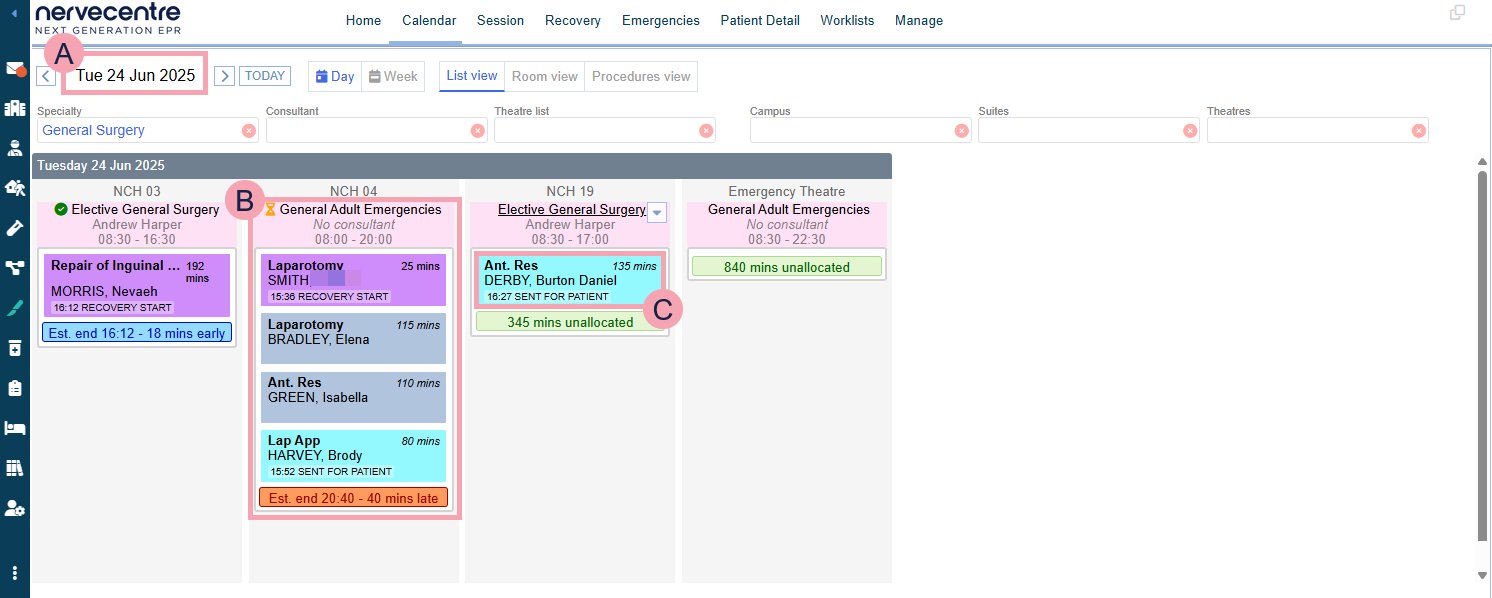
From Theatres > Calendar > List view, you can view a list of procedures in each session, where each session is a column. Sessions are sorted by date, theatre, and start time.
|
|
Select to move forwards or backwards a day or a week. |
|
|
Select to choose a specific date from a calendar. |
|
TODAY |
Select to view today's sessions. |
|
Day |
Select to view sessions on a specific day. |
|
Week |
Select to view sessions on a specific week. |
|
List view |
The current view. |
|
Room view |
Select to switch to room view. |
|
Procedures view |
Select to switch to procedures view. |
|
Specialty |
Select a specialty to view sessions for that specialty. |
|
Consultant |
Only appears if you choose a specialty. Select a consultant to view sessions with that consultant. |
|
Theatre list |
Select one or more theatre lists to view sessions in those theatre lists. |
|
Campus |
Select a campus to view sessions at that campus. |
|
Suites |
Select a theatre suite to view sessions in that theatre suite. |
|
Theatres |
Select one or more theatres to view sessions in those theatres. |
|
|
A session. Above the session is the name of the theatre where the session takes place. From top to bottom, the session displays:
Select the name of the theatre list to view and manage that specific session. |
|
|
Mouseover a session and select to manage that session. |
|
|
A procedure. The colour of the procedure tells you its status. Read about the colours for procedures
|


 Overview of Calendar > Room view
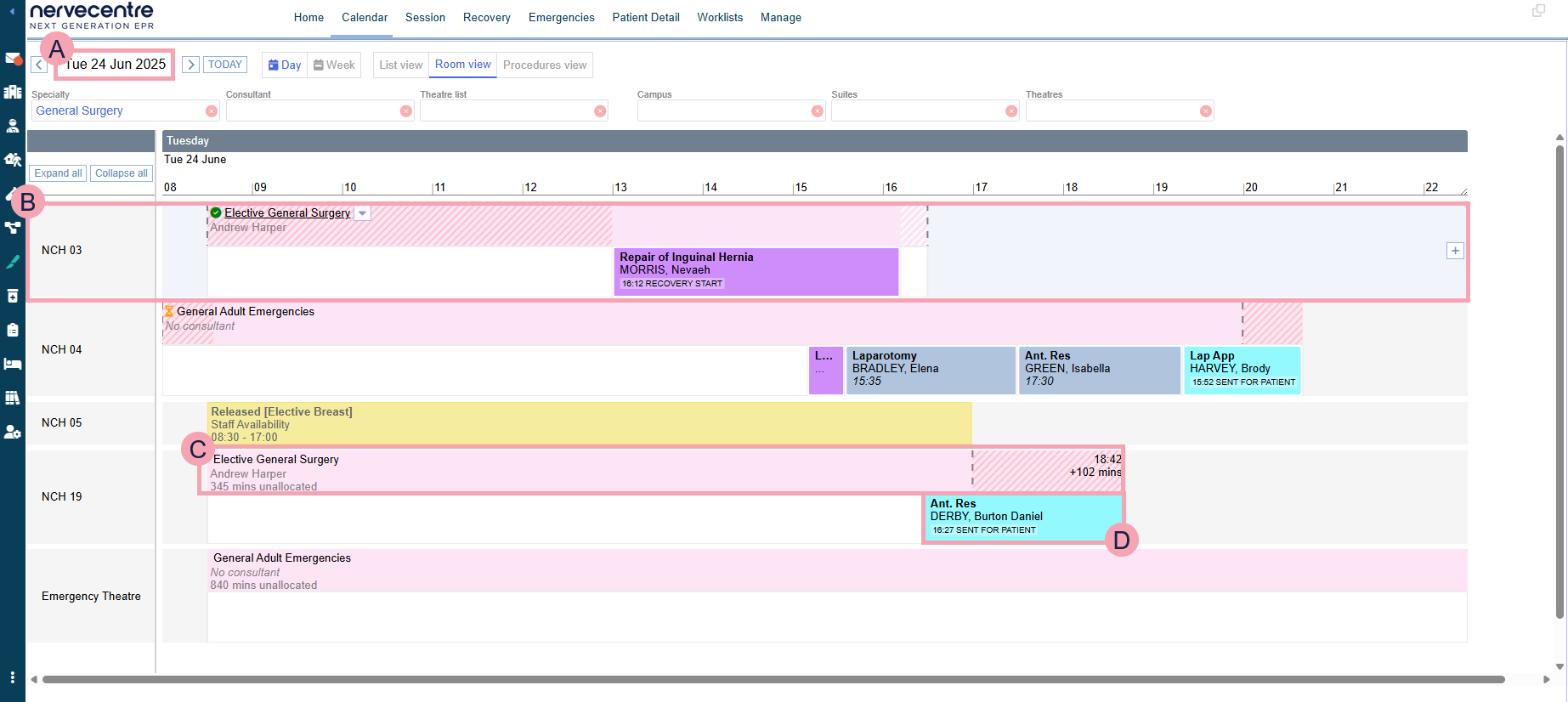
From Theatres > Calendar > Room view, you can view a list of theatres, where each theatre is a room, and each room is a row. Sessions display in the appropriate row, and you can see the length of the session. You can collapse the list of theatres to show less detail but more theatres.
|
|
Select to move forwards or backwards a day or a week. |
|
|
Select to choose a specific date from a calendar. |
|
TODAY |
Select to view today's sessions. |
|
Day |
Select to view sessions on a specific day. |
|
Week |
Select to view sessions on a specific week. |
|
List view |
Select to switch to list view. |
|
Room view |
The current view. |
|
Procedures view |
Select to switch to procedures view. |
|
Specialty |
Select a specialty to view sessions for that specialty. |
|
Consultant |
Only appears if you choose a specialty. Select a consultant to view sessions with that consultant. |
|
Theatre list |
Select one or more theatre lists to view sessions in those theatre lists. |
|
Campus |
Select a campus to view sessions at that campus. |
|
Suites |
Select a theatre suite to view sessions in that theatre suite. |
|
Theatres |
Select one or more theatres to view sessions in those theatres. |
|
|
Select to view more information about sessions, but fewer theatres. |
|
Collapse all |
Select to view less information about sessions, but more theatres. |
|
|
Mouseover a session and select to manage that session. |
|
|
A theatre, or room. Mouseover the row and select + to add a session, or to add downtime. |
|
|
A session. From top to bottom, this shows:
Select the name of the theatre list to view and manage that specific session. |
|
|
A procedure. The colour of the procedure tells you its status. Read about the colours for procedures
|
 Overview of Calendar > Procedures view
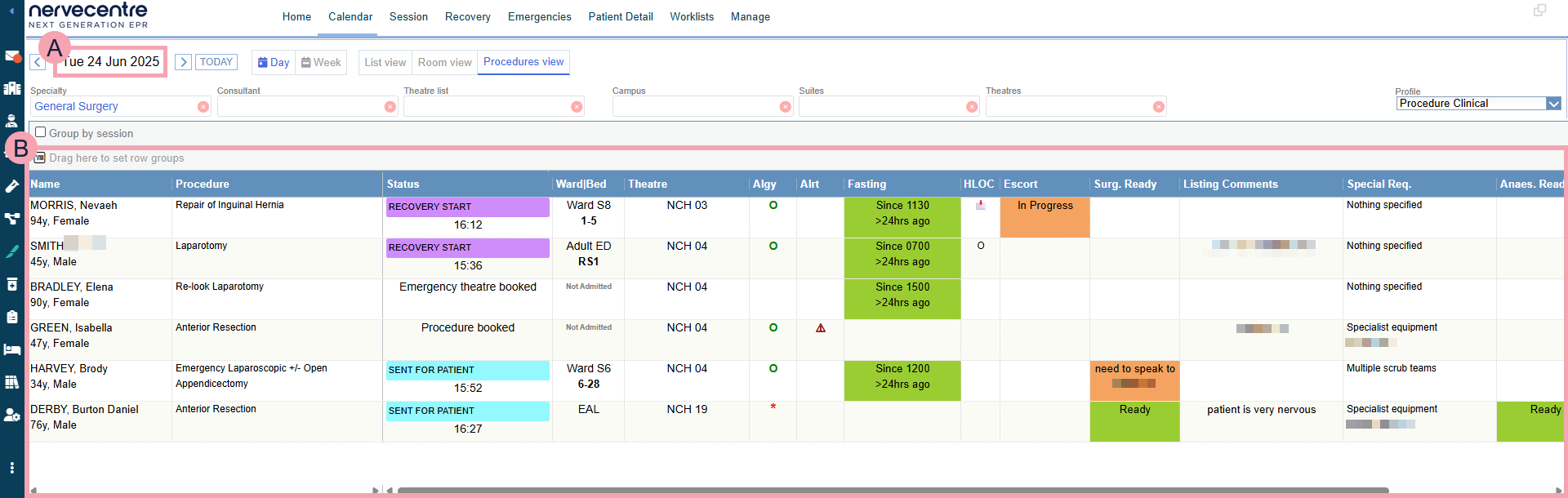
From Theatres > Calendar > Procedures view, you can view a list of procedures booked with a specified time frame.
|
|
Select to move forwards or backwards a day or a week. |
|
|
Select to choose a specific date from a calendar. |
|
TODAY |
Select to view today's sessions. |
|
Day |
Select to view sessions on a specific day. |
|
Week |
Select to view sessions on a specific week. |
|
List view |
Select to switch to list view. |
|
Room view |
Select to switch to room view. |
|
Procedures view |
The current view. |
|
Specialty |
Select a specialty to view sessions for that specialty. |
|
Consultant |
Only appears if you choose a specialty. Select a consultant to view sessions with that consultant. |
|
Theatre list |
Select one or more theatre lists to view sessions in those theatre lists. |
|
Campus |
Select a campus to view sessions at that campus. |
|
Suites |
Select a theatre suite to view sessions in that theatre suite. |
|
Theatres |
Select one or more theatres to view sessions in those theatres. |
| Profile |
Select a clinical note profile to change the information that displays next to each procedure. |
|
Group by session |
Select to group the procedures in this list by the sessions they are in. |
|
|
A list of procedures. Double-click on a procedure to view that procedure from Patient Detail > Procedures. Read more about viewing procedures You can filter the list of procedures. |
Viewing theatre session from List view
-
From Theatres > Calendar, select List view.
-
View a specific day, or a specific week.
-
To view a specific day, select Day, then select or to choose a date.
-
To view a specific week, select Week, then select or to choose a week.
-
-
Filter the sessions that display using the table below.
Specialty
Select a specialty to view sessions for that specialty.
Consultant
Only appears if you choose a specialty.
Select a consultant to view sessions with that consultant.
Theatre list
Select one or more theatre lists to view sessions in those theatre lists.
Campus
Select a campus to view sessions at that campus.
Suites
Select a theatre suite to view sessions in that theatre suite.
Theatres
Select one or more theatres to view sessions in those theatres.
Viewing theatre session from Room view
-
From Theatres > Calendar, select Room view.
-
View a specific day, or a specific week.
-
To view a specific day, select Day, then select or to choose a date.
-
To view a specific week, select Week, then select or to choose a week.
-
-
Filter the sessions that display using the table below.
Specialty
Select a specialty to view sessions for that specialty.
Consultant
Only appears if you choose a specialty.
Select a consultant to view sessions with that consultant.
Theatre list
Select one or more theatre lists to view sessions in those theatre lists.
Campus
Select a campus to view sessions at that campus.
Suites
Select a theatre suite to view sessions in that theatre suite.
Theatres
Select one or more theatres to view sessions in those theatres.
-
To view more details about sessions, select .
-
To view less detail about sessions, but more theatres, select Collapse all.
Viewing theatre session from Procedures view
-
From Theatres > Calendar, select Procedures view.
-
View a specific day, or a specific week.
-
To view a specific day, select Day, then select or to choose a date.
-
To view a specific week, select Week, then select or to choose a week.
-
-
To group procedures by session, select Group by session.
-
Filter the sessions that display using the table below.
Specialty
Select a specialty to view sessions for that specialty.
Consultant
Only appears if you choose a specialty.
Select a consultant to view sessions with that consultant.
Theatre list
Select one or more theatre lists to view sessions in those theatre lists.
Campus
Select a campus to view sessions at that campus.
Suites
Select a theatre suite to view sessions in that theatre suite.
Theatres
Select one or more theatres to view sessions in those theatres.
Colours for procedures in sessions
The colour of a procedure tells you the status of that procedure.
Most colours depend on your organisation, but the two colours below don't.
|
Orange |
Procedure booking in progress. |
| Pale blue |
Procedure booked but not started. |
Symbols for sessions
The following symbols can display next to sessions.
|
|
The session is confirmed. You can lock a confirmed session. |
|
|
The session is locked. You can't add procedures to the session, reorder procedures in the session, or edit the session. You can cancel procedures in the session. On the day of the session and the day after, the session doesn't behave as if it were locked. Depending on your permissions, you can unlock the session, confirm the session, edit the session, reorder procedures, manage the session's staff, and add procedures to the session. |
|
|
A procedure is currently happening. |
|
|
Waiting for the next procedure in the session to start. |
|
|
The session has finished. |
|
|
This session has some notes. Mouseover to view any notes. |
Did you find this article helpful? Yes No
Sorry about that. Our help is a work in progress and we welcome any feedback.
Why wasn't this helpful? Please select one reason:
Great!
Thanks for taking the time to give us some feedback.