Nervecentre V9.0 Help for Users
Managing theatre rooms
A theatre is a room where you can schedule theatre sessions. From Theatres > Manage > Theatre rooms, you can manage theatre rooms and create sessions for them. You can create sessions with a template, without a template, or ad hoc from Calendar.
Read about adding ad hoc sessions from Calendar
Managing theatre rooms on a mobile
You can't do this on a mobile.
Managing theatre rooms on a desktop
 Overview of Manage > Theatre rooms
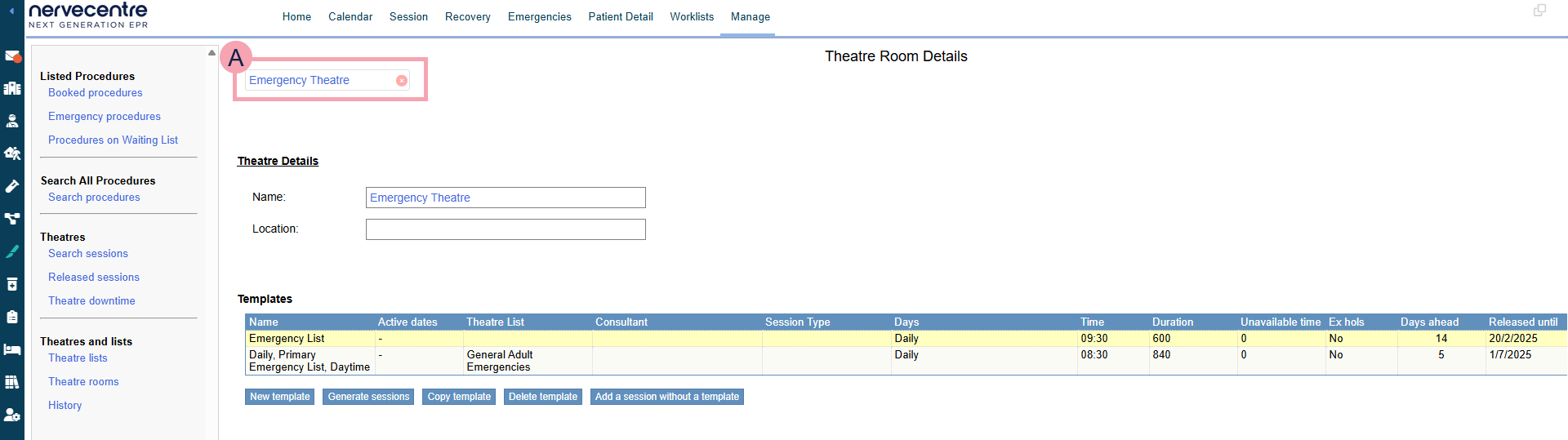
From Theatres > Manage > Theatre rooms, you can manage theatre rooms and create sessions for them.
|
|
Select a theatre. |
|
Theatre Details |
Shows the name of the theatre and the location. |
|
Templates |
Shows templates for this theatre. Double-click on a template to edit it. |
|
New template |
Select to create a new template. |
|
Generate sessions |
Select to generate sessions using the selected template. |
|
Copy template |
Select to copy the selected template. |
|
Delete template |
Select to delete the selected template. This means the template no longer runs. This doesn't affect sessions with procedures booked in them. |
|
Add a session without a template |
Select to add sessions without a template. |
 Creating sessions with a template
-
From Theatres > Manage > Theatre rooms, select a theatre room.
-
Select New template.
-
Enter a name for the template.
-
Select a theatre list to create sessions for that theatre list.
This is automatically populated.
-
Select a specific theatre to create sessions for that theatre.
-
Select the responsible consultant for the theatre.
If you don't know this now, you can add it later.
-
Select Add.
-
Edit the template.
-
Generate the sessions using the template.
Copying templates
-
From Theatres > Manage > Theatre rooms, select a theatre room.
-
Select a template you want to copy.
-
Select Copy template.
-
Enter a name for the template.
-
Select a theatre list to create sessions for that theatre list.
This is automatically populated.
-
Select a specific theatre to create sessions for that theatre.
This is automatically populated.
-
Select Add.
-
Edit the template.
-
Generate the sessions using the template.
Editing a template
-
From Theatres > Manage > Theatre rooms, select a theatre room.
-
Double-click on a template.
A dialogue box appears.
-
Edit the template using the table below.
|
Name |
Enter a name for the template. |
|
Description |
Enter a description for the template. |
|
List |
Shows the theatre list that sessions are added to. |
|
Theatre |
Shows the theatre that sessions are added to. |
|
Consultant |
Select the responsible consultant for the theatre. |
|
Session Type |
Select a session type. |
|
Start time |
Enter a start time for the session. |
|
Duration (mins) |
Enter a duration of the session. |
|
Unavailable time (mins) |
Enter the time within a session that the session is not bookable. The total bookable time within a session is the session duration minus any unavailable time. |
|
Frequency |
Select a frequency to choose when sessions are available. To make sessions available on:
|
|
Days of the Week |
Only for the frequency 'Daily'. Select one or more days of the week when sessions are available. For example, every weekday, or only Tuesday and Thursday. |
|
Repeat weekly |
Only for the frequency 'Daily'. Select the weeks when sessions are available. For example, every week, or every 6 weeks. |
|
Day of the Month |
Only for the frequency 'Monthly by date'. Enter a day when sessions are available. For example, enter 1 if you want appointment slots on the first day of the month. |
|
Repeat monthly |
Only for the frequencies 'Monthly by date' and 'Monthly by day'. Select the months when sessions are available. For example, every month, or every 6 months. |
|
Occurrence |
Only for the frequency 'Monthly by day'. Select when sessions are available. For example, on the first and third occurrence of the month. |
|
Day of the Week |
Only for the frequency 'Monthly by day'. Select a day of the week when sessions are available. For example, on the first and third Wednesday of the month. |
|
Public Holidays |
Select if sessions are available on public holidays. |
|
Auto-create days ahead |
Enter a number of days. Nervecentre automatically generates sessions this number of days ahead. For example, if you enter 30, Nervecentre always makes sure there are sessions for the next 30 days. |
|
Start date |
Select a date when sessions are available from. |
|
End date |
Select a date that sessions are no longer available from. |
Generating sessions
-
From Theatres > Manage > Theatre rooms, select a theatre room.
-
Select a template.
-
Select Generate sessions.
-
Select a start date to create sessions from that date.
-
Select an end date to not create sessions after that date.
-
Select Apply.
Deleting templates
You can delete templates to stop a template from running. This doesn't affect sessions with procedures booked in them.
-
From Theatres > Manage > Theatre rooms, select a theatre room.
-
Select a template.
-
Select Delete template.
Creating sessions without a template
-
From Theatres > Manage > Theatre rooms, select a theatre room.
-
Select Add a session without a template.
-
Edit the session using the table below.
|
List |
Select a theatre list to add sessions to that list. |
|
Day |
Select a date to generate sessions on that date. |
|
Theatre |
Select a theatre to create sessions for that theatre. |
|
Consultant |
Select the responsible consultant for the theatre. |
|
Session Type |
Select a session type. |
|
Start time |
Enter a start time for the session. |
|
Duration (mins) |
Enter a duration of the session. |
|
Unavailable time (mins) |
Enter the time within a session that the session is not bookable. The total bookable time within a session is the session duration minus any unavailable time. |
|
Reason |
Select a reason for adding sessions. |
Did you find this article helpful? Yes No
Sorry about that. Our help is a work in progress and we welcome any feedback.
Why wasn't this helpful? Please select one reason:
Great!
Thanks for taking the time to give us some feedback.