Nervecentre V9.0 Help for Users
Managing theatre lists
A theatre list is a repeated block of time for performing procedures. You can create sessions for a theatre list, and schedule procedures in those sessions. This behaves in a similar way to an outpatient clinic, where you create slots for the clinic, and schedule appointments in those slots.
From Theatres > Manage > Theatre lists, you can manage theatre lists and create sessions for them. You can create sessions with a template, without a template, or ad hoc from Calendar.
Read about adding ad hoc sessions from Calendar
Managing theatre lists on a mobile
You can't do this on a mobile.
Managing theatre lists on a desktop
 Overview of Manage > Theatre lists
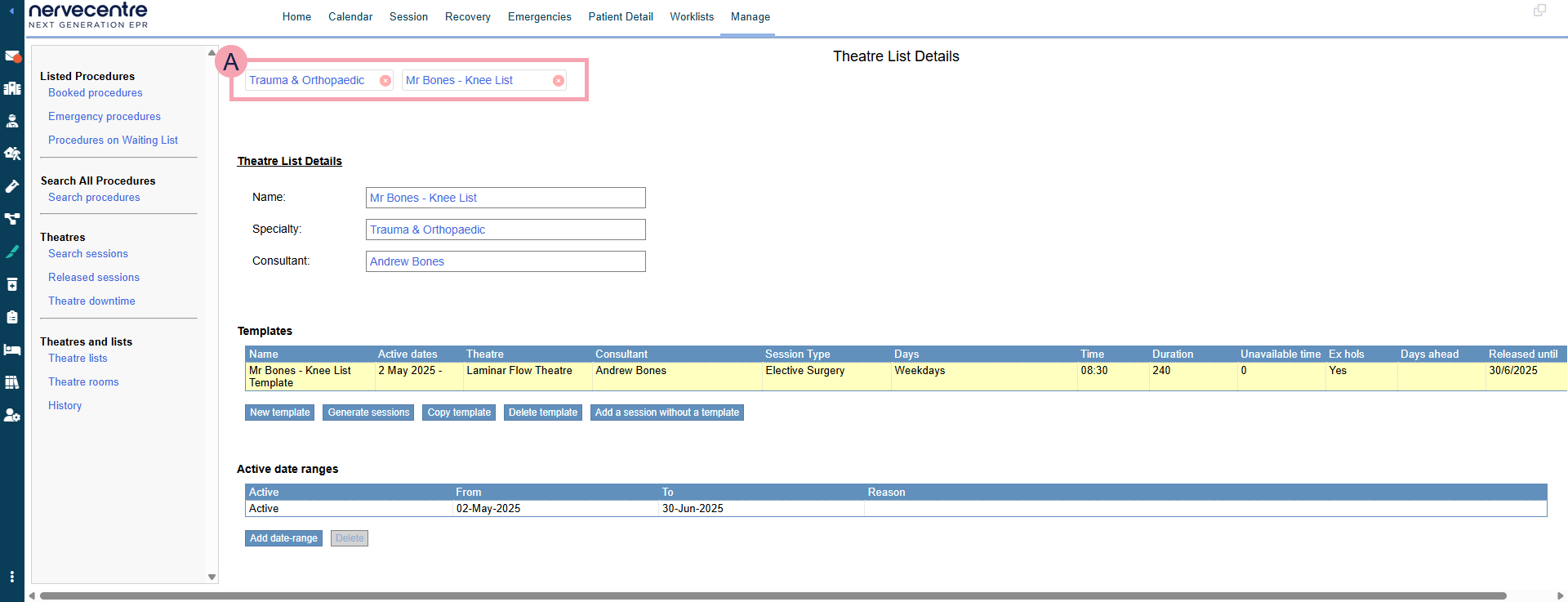
From Theatres > Manage > Theatre lists, you can manage theatre lists and create sessions for them.
|
|
Select a specialty and theatre list. |
|
Theatre List Details |
Shows the name of the theatre list, specialty, and consultant. You can't edit this. |
|
Templates |
Shows templates for this theatre list. Double-click on a template to edit it. |
|
New template |
Select to create a new template. |
|
Generate sessions |
Select to generate sessions using the selected template. |
|
Copy template |
Select to copy the selected template. |
|
Delete template |
Select to delete the selected template. This means the template no longer runs. This doesn't affect sessions with procedures booked in them. |
|
Add a session without a template |
Select to add sessions without a template. |
|
Active date ranges |
Shows when the theatre list is active and inactive. |
|
Add date-range |
Select to add a date range when the theatre list is active or inactive. |
|
Delete |
Select to delete the selected date range. |
 About templates for theatre lists
Templates allow you to create recurring sessions for a theatre list. Templates define the theatre list, theatre, start time, and duration of sessions.
Creating sessions with a template
-
From Theatres > Manage > Theatre lists, select a specialty and theatre list.
-
Select New template.
-
Enter a name for the template.
-
Select a theatre list to create sessions for that theatre list.
This is automatically populated.
-
Select a specific theatre to create sessions for that theatre.
-
Select the responsible consultant for the theatre.
If you don't know this now, you can add it later.
-
Select Add.
-
Edit the template.
-
Generate the sessions using the template.
-
Add an active date range.
Copying templates
-
From Theatres > Manage > Theatre lists, select a specialty and theatre list.
-
Select a template you want to copy.
-
Select Copy template.
-
Enter a name for the template.
-
Select a theatre list to create sessions for that theatre list.
This is automatically populated.
-
Select a specific theatre to create sessions for that theatre.
This is automatically populated.
-
Select Add.
-
Edit the template.
-
Generate the sessions using the template.
-
Add an active date range.
Editing a template
-
From Theatres > Manage > Theatre lists, select a specialty and theatre list.
-
Double-click on a template.
A dialogue box appears.
-
Edit the template using the table below.
|
Name |
Enter a name for the template. |
|
Description |
Enter a description for the template. |
|
List |
Shows the theatre list that sessions are added to. |
|
Theatre |
Shows the theatre that sessions are added to. |
|
Consultant |
Select the responsible consultant for the theatre. |
|
Session Type |
Select a session type. |
|
Start time |
Enter a start time for the session. |
|
Duration (mins) |
Enter a duration of the session. |
|
Unavailable time (mins) |
Enter the time within a session that the session is not bookable. The total bookable time within a session is the session duration minus any unavailable time. |
|
Frequency |
Select a frequency to choose when sessions are available. To make sessions available on:
|
|
Days of the Week |
Only for the frequency 'Daily'. Select one or more days of the week when sessions are available. For example, every weekday, or only Tuesday and Thursday. |
|
Repeat weekly |
Only for the frequency 'Daily'. Select the weeks when sessions are available. For example, every week, or every 6 weeks. |
|
Day of the Month |
Only for the frequency 'Monthly by date'. Enter a day when sessions are available. For example, enter 1 if you want appointment slots on the first day of the month. |
|
Repeat monthly |
Only for the frequencies 'Monthly by date' and 'Monthly by day'. Select the months when sessions are available. For example, every month, or every 6 months. |
|
Occurrence |
Only for the frequency 'Monthly by day'. Select when sessions are available. For example, on the first and third occurrence of the month. |
|
Day of the Week |
Only for the frequency 'Monthly by day'. Select a day of the week when sessions are available. For example, on the first and third Wednesday of the month. |
|
Public Holidays |
Select if sessions are available on public holidays. |
|
Auto-create days ahead |
Enter a number of days. Nervecentre automatically generates sessions this number of days ahead. For example, if you enter 30, Nervecentre always makes sure there are sessions for the next 30 days. |
|
Start date |
Select a date when sessions are available from. |
|
End date |
Select a date that sessions are no longer available from. |
Generating sessions
-
From Theatres > Manage > Theatre lists, select a specialty and theatre list.
-
Select a template.
-
Select Generate sessions.
-
Select a start date to create sessions from that date.
-
Select an end date to not create sessions after that date.
-
Select Apply.
Adding an active date range
-
From Theatres > Manage > Theatre lists, select a specialty and theatre list.
-
Select Add date-range.
-
Select if the theatre list is active or inactive for the date range.
-
Select a date the theatre list is active or inactive from.
-
Select a date the theatre list is active or inactive to.
-
Enter a reason.
-
Select Add.
Deleting templates
You can delete templates to stop a template from running. This doesn't affect sessions with procedures booked in them.
-
From Theatres > Manage > Theatre lists, select a specialty and theatre list.
-
Select a template.
-
Select Delete template.
Deleting an active date range
If you delete an active range, Nervecentre creates no further sessions during the deleted range. If you delete an inactive range, Nervecentre creates sessions in that range again.
-
From Theatres > Manage > Theatre lists, select a specialty and theatre list.
-
Select a date range.
-
Select Delete.
Creating sessions without a template
-
From Theatres > Manage > Theatre lists, select a specialty and theatre list.
-
Select Add a session without a template.
-
Edit the session using the table below.
|
List |
Select a theatre list to add sessions to that list. |
|
Day |
Select a date to generate sessions on that date. |
|
Theatre |
Select a theatre to create sessions for that theatre. |
|
Consultant |
Select the responsible consultant for the theatre. |
|
Session Type |
Select a session type. |
|
Start time |
Enter a start time for the session. |
|
Duration (mins) |
Enter a duration of the session. |
|
Unavailable time (mins) |
Enter the time within a session that the session is not bookable. The total bookable time within a session is the session duration minus any unavailable time. |
|
Reason |
Select a reason for adding sessions. |
Did you find this article helpful? Yes No
Sorry about that. Our help is a work in progress and we welcome any feedback.
Why wasn't this helpful? Please select one reason:
Great!
Thanks for taking the time to give us some feedback.