Nervecentre V9.0 Help for Users
Getting notifications about a patient's results
Where appropriate, you and/or colleagues can receive a notification when Nervecentre receives the results of an investigation. You can choose to receive notifications when you are placing an order for an investigation, or after the order has been placed.
 About Notify Results
When you place an order, you might see a field called Notify Results. From Notify Results, you can choose who receives messages about updates to the order, and results.
If your organisation:
-
Has Nervecentre Messaging
You can send messages to your inbox, a consultant's inbox, or a shared inbox. When Nervecentre receives an update about an order, or results, Nervecentre sends a message to the recipient's inbox. You can view messages in your inbox on a mobile or desktop.
Read more about viewing messages
Nervecentre Messaging is available from V9.0.
-
Doesn't have Nervecentre Messaging
You can send alerts to your mobile, or another clinician's mobile. When Nervecentre receives an update about an order, or results, Nervecentre sends an alert to you, or another user. For example, to a clinician in a team such as H@N Hospital at Night. A multidisciplinary team of doctors and nurses working collaboratively to manage patient tasks in the out of hours periods.. When you receive an alert, a notification appears on your mobile.
Getting notifications about a patient's results on a mobile
Choosing to be notified when placing an order
-
Follow the steps for placing an order.
-
When you reach the order form, find Notify Results.
-
From Notify Results, select one or more options.
If your organisation has Nervecentre Messaging:
-
To receive messages about an order, select Notify my Inbox.
-
To send messages about an order to the requesting consultant, select Notify Consultant's Inbox.
-
To send messages about an order to a shared inbox, select Notify Shared Inbox: n, where n is the name of the inbox.
If your organisation doesn't have Nervecentre Messaging:
-
To receive an alert about results on your mobile, select Notify Me. The button text depends on your organisation.
-
To send an alert about results to a relevant clinician's mobile, select Notify Relevant Clinician. For example, to a clinician in a team such as H@N Hospital at Night. A multidisciplinary team of doctors and nurses working collaboratively to manage patient tasks in the out of hours periods.. The button text depends on your organisation.
-
Getting notifications about a patient's results on a desktop
Choosing to be notified when placing an order
-
Follow the steps for placing an order.
-
When you reach the order form, find Notify Results.
-
From Notify Results, select one or more options.
If your organisation has Nervecentre Messaging:
-
To receive messages about an order, select Notify my Inbox.
-
To send messages about an order to the requesting consultant, select Notify Consultant's Inbox.
-
To send messages about an order to a shared inbox, select Notify Shared Inbox: n, where n is the name of the inbox.
If your organisation doesn't have Nervecentre Messaging:
-
To receive an alert about results on your mobile, select Notify Me. The button text depends on your organisation.
-
To send an alert about results to a relevant clinician's mobile, select Notify Relevant Clinician. For example, to a clinician in a team such as H@N Hospital at Night. A multidisciplinary team of doctors and nurses working collaboratively to manage patient tasks in the out of hours periods.. The button text depends on your organisation.
-
Choosing to be notified after placing an order
If your organisation has Nervecentre Messaging, you can choose to be notified about an order after the order has been placed.
-
Open the patient's record.
-
From Inpatients, select Patient List > double-click on a patient's name > Patient Detail.
-
From Outpatients, select Clinic List > double-click on a patient's name > Patient Detail.
-
-
Select Investigations > .
-
Select an order.
Information appears on the right.
-
Select > Watch Results.
When Nervecentre receives an update to the order or results, you receive a message. A notification appears on your desktop. If you are also watching the patient, you receive a second notification too.
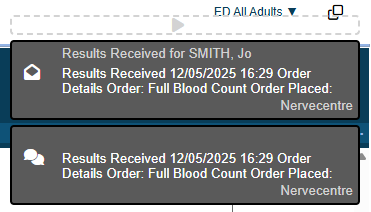
Select the notification to view the message, or select Messaging.
Actions available from messages about results
If your organisation has Nervecentre Messaging, you can view messages about investigations from Messaging > > Inbox or Shared Inboxes. Messages for investigations display .
From a message about an investigation:
-
Select next to the patient's information to view the patient's record
-
Select Go to order to view the patient's orders
-
Select View order to view information about the order
You can view the results, order details, and order history, but not the results history. You can choose to sign off the order.
Did you find this article helpful? Yes No
Sorry about that. Our help is a work in progress and we welcome any feedback.
Why wasn't this helpful? Please select one reason:
Great!
Thanks for taking the time to give us some feedback.