Nervecentre V9.0 Help for Users
Recording timings for a procedure
After you send for a patient, you can record specific time points during a procedure, for example, when the patient arrived, when anaesthetics were given to the patient, or when the patient entered recovery. The time points you need to record depend on your organisation and permissions.
Some time points are mandatory, meaning you must record them. Mandatory time points are marked . Other time points are not mandatory, meaning you can skip them.
You can add extra time points to specific procedures. These are called ad hoc time points. The ad hoc timepoints available depend on your organisation.
Recording timings for a procedure on a mobile
You can't do this on a mobile.
Recording timings for a procedure on a desktop
 Overview of Timings
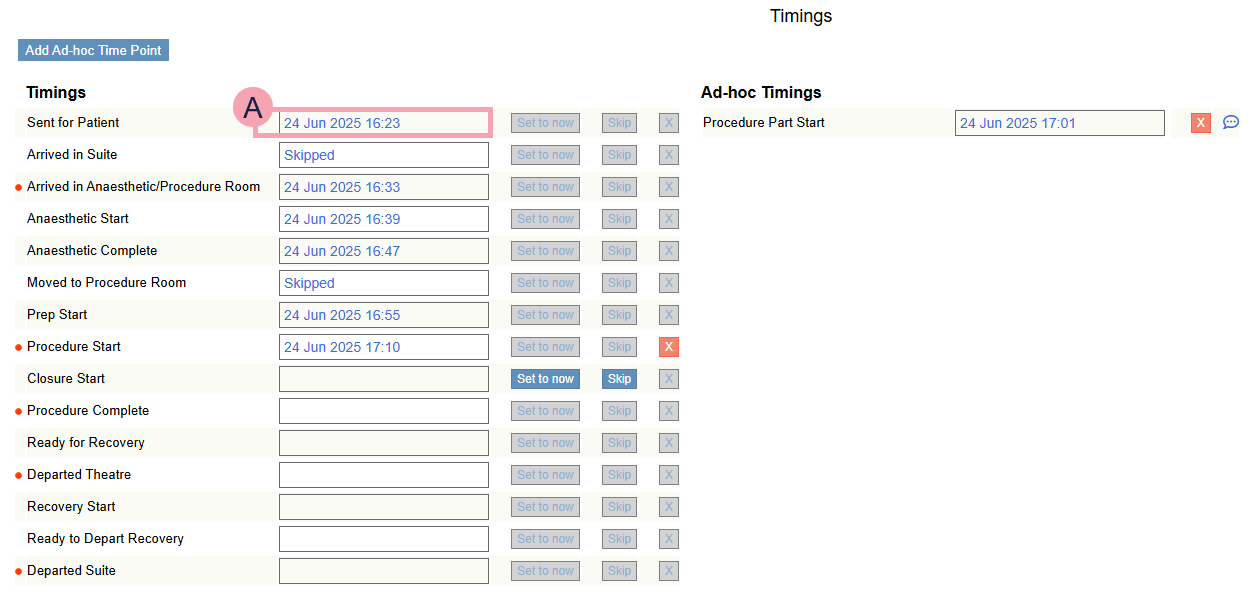
From Patient Detail > Procedures > Perform > Timings, you can record specific time points during a procedure, for example, when the patient arrived, when anaesthetics were given to the patient, or when the patient entered recovery.
|
|
Select to add a time point. |
|
Timings |
Shows the standard set of time points for procedures in this theatre. Mandatory time points are marked . |
|
Ad-hoc Timings |
Shows ad hoc time points. |
|
|
The date and time set for a time point. Select to edit the date and time. If this displays Skipped, you can't edit it. |
|
|
Select to clear the date and time set for that time point, or to delete an ad hoc time point. You can only select this for the last time point set in the list Timings or Ad-hoc Timings. |
|
|
Select to view, add, and edit notes about the ad hoc time point. |
|
Set to now |
Select to set the time point to the current date and time. You can only select this for the next time point to set in the list Timings. |
|
Skip |
Select to skip the time point. You can only skip time points that aren't mandatory. You can only select this for the next time point to set in the list Timings. |
 Setting a time point
-
From Theatres > Calendar, double-click on the patient's procedure.
-
From Procedures > Perform, select Timings.
A list of time points appears. If there are no time points, you might be able to add an ad hoc time point.
-
To record the current date and time for a time point, select Set to now.
Mandatory time points are marked .
If the time point isn't mandatory, you can skip it.
-
To edit a time point, select the date and time you want to edit, then select a date and time.
You can remove time points.
Skipping a time point
Your organisation might make some time points mandatory, meaning you must record them. You can skip time points if they aren't mandatory.
-
From Theatres > Calendar, double-click on the patient's procedure.
-
From Procedures > Perform, select Timings.
A list of time points appears.
Mandatory time points are marked .
-
Next to a non-mandatory time point, select Skip.
The time point displays Skipped.
Adding a time point
You can add a time point that is not in the list of time points. The time points available to add depend on your organisation.
-
From Theatres > Calendar, double-click on the patient's procedure.
-
From Procedures > Perform, select Timings.
-
To add a time point, select > a category > a time point.
-
Select a date and time.
-
Optional: add any notes.
-
Select Add.
The time point appears under Ad-hoc Timings.
-
To view, add, and edit notes for an ad hoc time point, select .
Removing a time point
-
From Theatres > Calendar, double-click on the patient's procedure.
-
From Procedures > Perform, select Timings.
A list of time points appears.
-
To clear a time point, or delete an ad hoc time point, select .
Did you find this article helpful? Yes No
Sorry about that. Our help is a work in progress and we welcome any feedback.
Why wasn't this helpful? Please select one reason:
Great!
Thanks for taking the time to give us some feedback.