Nervecentre V7.2 Help for Users
To show that you've seen and acknowledged results, you can sign off individual results and full orders on a mobile or desktop.
About deleted or struck out results
If a result is marked as deleted, then it is displayed as struck out. If the results were signed off before they were struck out, that sign-off is deleted because the data has changed.
You can sign off struck out results to acknowledge that you have seen them.
Read more about struck out results
Signing off results on a mobile
 Signing off a single result
-
From Patients, select a patient, or scan the patient’s wristband.
-
Scroll to Orders.
-
Select an order.
-
Select the result you want to sign, select Sign below that result, and confirm.
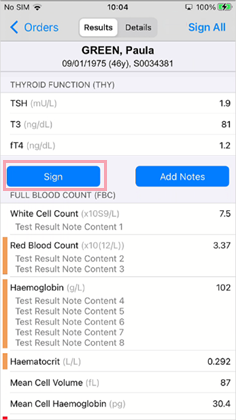
The order still shows Not Signed if only part of the order is signed off.
Signing off all the received results from an order
You can sign off all results received from an order. If more results arrive, the order becomes unsigned.
-
From Patients, select a patient, or scan the patient’s wristband.
-
Scroll to Orders.
-
Select an order.
-
Select Sign All to acknowledge the whole result, and confirm.
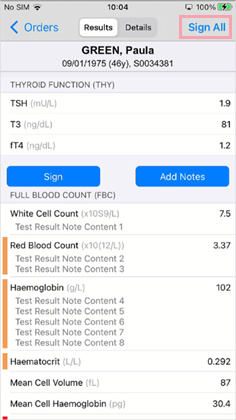
Removing a sign-off from a single result
-
From Patients, select a patient, or scan the patient’s wristband.
-
Scroll to Orders.
-
Select an order.
Partly signed-off orders show Not Signed.
-
Scroll to the result, and select Unsign below.
-
Enter a reason as free text, and confirm.
Removing a sign-off from an order
-
From Patients, select a patient, or scan the patient’s wristband.
-
Scroll to Orders.
-
Select a signed order.
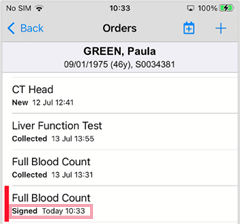
-
Select Unsign All.
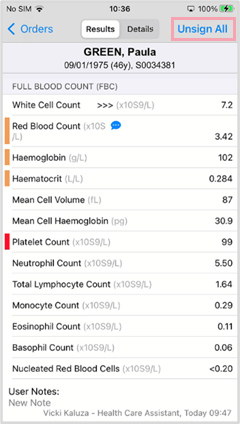
-
Enter a reason as free text, and confirm.
Signing off results on a desktop
Signing off results from the order summary
-
Select > Clinical pages > Patient list, and select a patient.
-
Select Investigations.
-
Select .
-
Select an order to view the result.
-
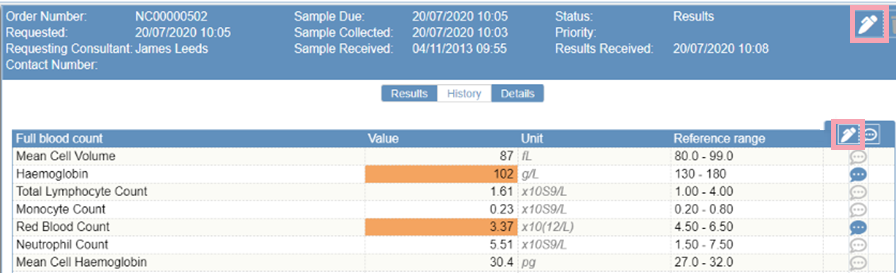
To sign off all received results as reviewed, from the blue bar at the top of the information pane, select .
To sign off a single result as reviewed, from the blue table header bar, select .
-
To close the information pane, mouseover between the panes and select .
If you have permission to sign off results, and you close the pane without signing, you are asked if you want to sign off results.
Signing off results from the results summary
-
Select > Clinical pages > Patient list, and select a patient.
-
Select Investigations.
-
Select R.
-
Select the time and date at the top to open the order and result details. This is the time and date the sample was taken.
-
To sign off all received results as reviewed, from the blue bar at the top of the information pane, select .
To sign off a single result as reviewed, from the blue table header bar, select .
Removing a sign-off
-
Select > Clinical pages > Patient list, and select a patient.
-
Select Investigations.
-
Select or R.
-
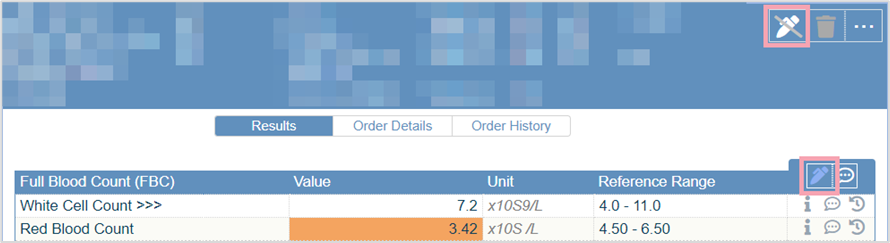
Select
 or
or  .
. -
Enter a reason and select Confirm.
Did you find this article helpful? Yes No
Sorry about that. Our help is a work in progress and we welcome any feedback.
Why wasn't this helpful? Please select one reason:
Thanks for your feedback.
Great!
Thanks for taking the time to give us some feedback.