Nervecentre V9.0 Help for Users
Reserving a bed for a patient with a scheduled procedure
You can reserve a bed for the patient with a scheduled procedure from Patient Detail > Patient admin. You can reserve the bed when you offer the date for the procedure, or after you have offered the date. You can also edit a patient's bed reservation.
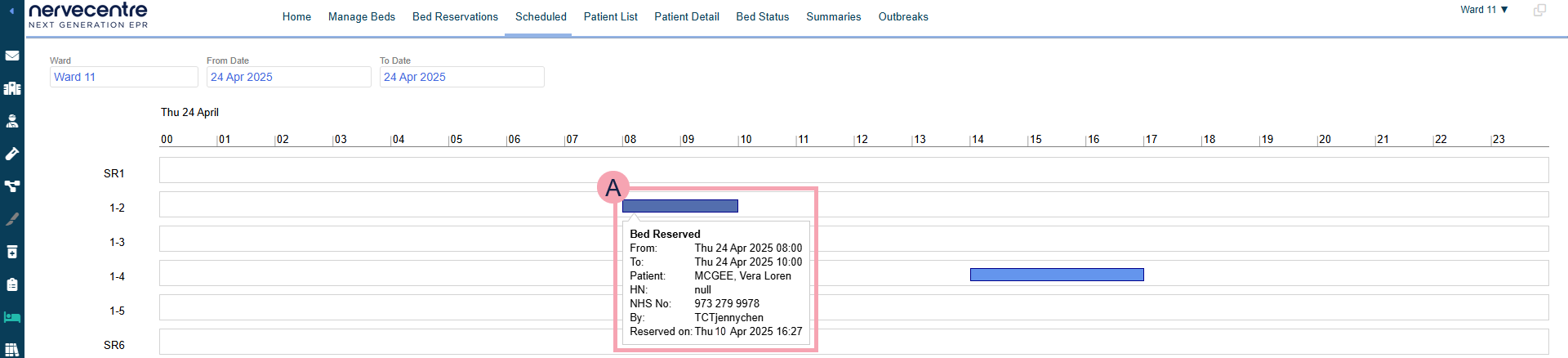
You can view scheduled bed reservations from Bed Management > Scheduled.
Reserving a bed for a patient with a scheduled procedure on a mobile
You can't do this on a mobile.
Reserving a bed for a patient with a scheduled procedure on a desktop
 Overview of Bed Management > Scheduled
From Bed Management > Scheduled, you can view patients who have a bed reservation associated with their preadmission.
|
Ward |
Select a ward to view bed reservations for that ward. |
|
From Date |
Select a date to view bed reservations after that date. |
|
To Date |
Select a date to view reservations before that date. |
|
|
A bed reservation. Mouseover the bed reservation to view more information. |
 Reserving a bed for a patient when offering a date for the procedure
Depending on your organisation, you can reserve a bed for a patient when you offer a date for a procedure.
-
Start with one of the following actions:
-
Offer a date for a procedure
-
Offer a standby date
-
-
From the form, select Reserve Bed.
-
Choose the start time, end time, duration, and bed of the first bed reservation.
-
From Bed Required From, enter a date and time the bed is reserved from.
-
From Bed Required Until, enter a date and time the bed is reserved to.
The duration automatically updates.
-
Optional: from Duration, enter the duration of the bed reservation.
The end date and time of the bed reservation automatically update.
-
Select one of the yellow highlighted areas to choose a bed for the first bed reservation.
The selected area is green.
-
-
Optional: choose the start time, end time, duration, and bed of the second bed reservation.
-
From Then From, enter a date and time the bed is reserved from.
-
From Until, enter a date and time the bed is reserved to.
The duration automatically updates.
-
Optional: from Period 2 Duration, enter the duration of the bed reservation.
The end date and time of the bed reservation automatically update.
-
Select one of the yellow highlighted areas to choose a bed for the second bed reservation.
The selected area is green.

-
-
Select Save.
Reserving a bed for a patient with a preadmission
-
Open the patient's record.
-
From Outpatients > Patient Detail, search for the patient.
-
From Inpatients > Patient Detail, search for the patient.
-
-
From Patient Detail > Patient admin > Show pathways, select TCI.
-
From Pending Preadmissions, select the preadmission.
-
Select Edit Bed Reservation.
-
Choose the start time, end time, duration, and bed of the first bed reservation.
-
From Bed Required From, enter a date and time the bed is reserved from.
-
From Bed Required Until, enter a date and time the bed is reserved to.
The duration automatically updates.
-
Optional: from Duration, enter the duration of the bed reservation.
The end date and time of the bed reservation automatically update.
-
Select one of the yellow highlighted areas to choose a bed for the first bed reservation.
The selected area is green.
-
-
Optional: choose the start time, end time, duration, and bed of the second bed reservation.
-
From Then From, enter a date and time the bed is reserved from.
-
From Until, enter a date and time the bed is reserved to.
The duration automatically updates.
-
Optional: from Period 2 Duration, enter the duration of the bed reservation.
The end date and time of the bed reservation automatically update.
-
Select one of the yellow highlighted areas to choose a bed for the second bed reservation.
The selected area is green.
-
-
Select Save.
Editing a bed reservation
-
Open the patient's record.
-
From Outpatients > Patient Detail, search for the patient.
-
From Inpatients > Patient Detail, search for the patient.
-
-
From Patient Detail > Patient admin > Show pathways, select TCI.
-
From Pending Preadmissions, select the preadmission.
-
Select Edit Bed Reservation.
-
Choose the start time, end time, duration, and bed of the first bed reservation.
-
From Bed Required From, enter a date and time the bed is reserved from.
-
From Bed Required Until, enter a date and time the bed is reserved to.
The duration automatically updates.
-
Optional: from Duration, enter the duration of the bed reservation.
The end date and time of the bed reservation automatically update.
-
Select one of the yellow highlighted areas to choose a bed for the first bed reservation.
The selected area is green.
-
-
Optional: choose the start time, end time, duration, and bed of the second bed reservation.
-
From Then From, enter a date and time the bed is reserved from.
-
From Until, enter a date and time the bed is reserved to.
The duration automatically updates.
-
Optional: from Period 2 Duration, enter the duration of the bed reservation.
The end date and time of the bed reservation automatically update.
-
Select one of the yellow highlighted areas to choose a bed for the second bed reservation.
The selected area is green.
-
-
Select Save.
Did you find this article helpful? Yes No
Sorry about that. Our help is a work in progress and we welcome any feedback.
Why wasn't this helpful? Please select one reason:
Great!
Thanks for taking the time to give us some feedback.