Nervecentre V7.1 Help for Users
Editing a care plan
You can select and deselect actions, change an action's priority, and edit the descriptions.
Editing a care plan on a mobile
 Editing a care plan
-
From Patients > select a patient > Obs and Assessments > Care Plans.
-
Select .
-
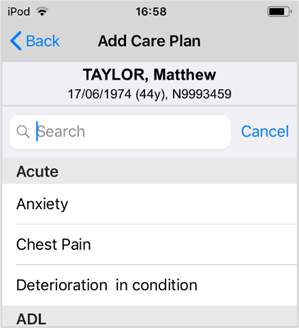
Search for a care plan by name.
Or select a care plan from the list.
-
The selected care plan appears in light grey to show that it is an inactive draft.
-
To edit or activate the care plan, select the name.
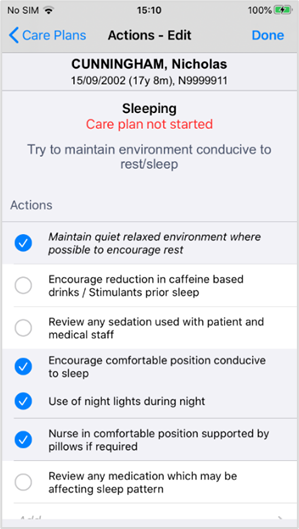
The care plan is displayed. Mandatory and pre-selected actions are marked .
Only actions marked appear in the care plan.
-
Choose actions for the care plan.
-
Select for any action you do not want to include in the care plan. If the action is mandatory, you can’t deselect it.
-
Select for any action you want to add to the care plan.
-
-
Select an action with a white background that you want to change.
You can add or change the RAG A red/amber/green ‘traffic light’ rating system. It can denote progress with various milestones rating for all actions, including mandatory and non-editable actions.
You cannot edit actions with a grey background.
You cannot edit actions that are shown in italic text.
-
Select OK.
-
To add a new action, select Add.
-
Add action text.
-
Add a RAG rating.
-
Select OK.
-
Select Done to activate the care plan.
-
Active care plans appear in black text.
Editing a care plan on a desktop
Editing a care plan
- > Clinical pages > Patient List > select a patient > Patient detail > Clinical.
- From Care Plans, select
 .
. -
Select the care plan you want to edit.
-
Select Edit.
-
Edit elements of the care plan action list. You can:
-
Select and clear actions.
-
Add or change a priority level for the action.
-
Select action text to edit an action.
-
Did you find this article helpful? Yes No
Sorry about that. Our help is a work in progress and we welcome any feedback.
Why wasn't this helpful? Please select one reason:
Thanks for your feedback.
Great!
Thanks for taking the time to give us some feedback.