Nervecentre V7.1 Help for Users
Adding a care plan
You can add a care plan, add actions to it, then activate the new care plan.
Adding, editing, and activating a care plan on a mobile
 Adding, editing, and activating a care plan
-
From Patients > select a patient > Obs and Assessments > Care Plans.
-
Select .
-
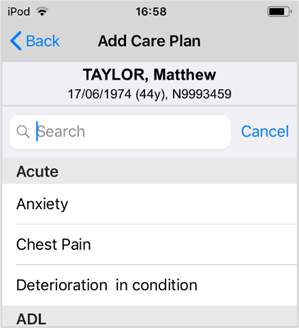
Search for a care plan by name.
Or select a care plan from the list.
-
The selected care plan appears in light grey to show that it is an inactive draft.
-
To edit or activate the care plan, select the name.
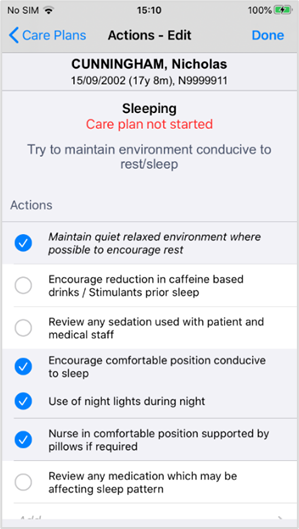
The care plan is displayed. Mandatory and pre-selected actions are marked .
Only actions marked appear in the care plan.
-
Choose actions for the care plan.
-
Select for any action you do not want to include in the care plan. If the action is mandatory, you can’t deselect it.
-
Select for any action you want to add to the care plan.
-
-
Select an action with a white background that you want to change.
You can add or change the RAG A red/amber/green ‘traffic light’ rating system. It can denote progress with various milestones rating for all actions, including mandatory and non-editable actions.
You cannot edit actions with a grey background.
You cannot edit actions that are shown in italic text.
-
Select OK.
-
To add a new action, select Add.
-
Add action text.
-
Add a RAG rating.
-
Select OK.
-
Select Done to activate the care plan.
-
Active care plans appear in black text.
Adding a care plan on a desktop
Adding a care plan
-
Select > Clinical pages > select a patient and Patient detail > Clinical > Care Plans.
-
From the list of active care plans, select .
-
Select a care plan group.
-
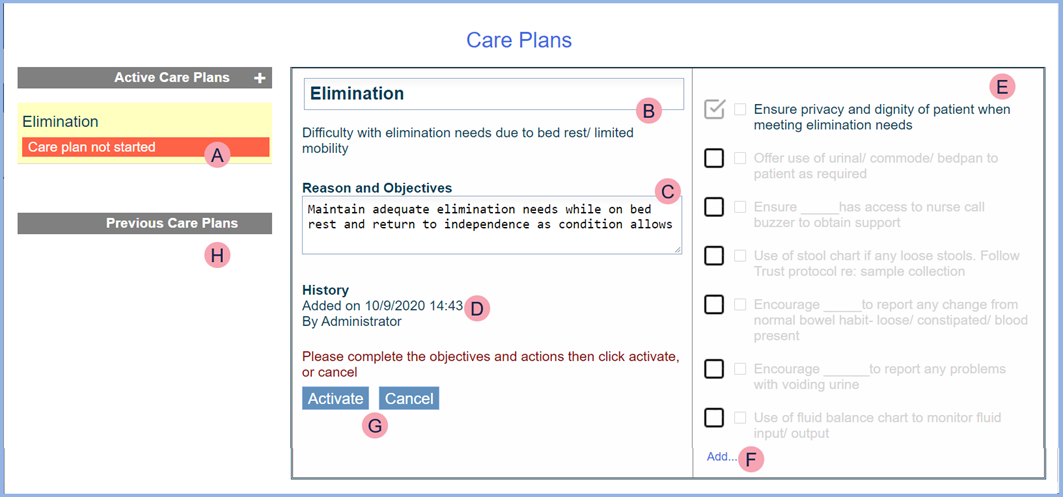
The care plan editor opens. This is where you can add new actions.
About the care plan editor
|
|
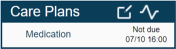
Active Care Plans displays a list of all active and inactive care plans. Inactive care plans are labelled as Care plan not started. Active care plans show the next due information. Activated care plans appear on Patient Detail > Care Plans.
|
|
|
The care plan title and description that you see when you start a care plan are defined by administrators. You can edit both the title and description. |
|
|
The reason and objectives that you see when you start a care plan are defined by administrators. You can edit both the reason and objectives. |
|
|
History displays the date and time the care plan was added, and by whom. |
|
|
The care plan action list displays the active and inactive actions of the care plan. It has three types action and information:
|
|
|
Select Add to add a new action. |
|
|
Select an option to activate or cancel the care plan. |
|
|
Previous Care Plans displays a list of past, inactive care plans, You can reactivate a previous care plan. |



 The care plan action list
The action list has three types action and information for each active and inactive action of the care plan.

From left to right, they are:
-
Activate or deactivate the action.
-
Set a priority to an element of care. This is indicated by colour.
-
Description of action.
Administrators configure actions for a care plan. Actions can be mandatory or non-mandatory, default or non-default, and editable or non-editable.
|
|
This is a mandatory action. Mandatory actions always appear in the activated care plan. Administrators configure mandatory actions. You can’t deselect this action. |
|
Record ECG |
This action is active on the care plan. Some actions might be preselected as default actions. You can deselect this action. |
|
Record ECG |
This action is not active on the care plan. Select the action to include it in the care plan. |
|
|
Indicates the priority level of the action. Select the box and then select a priority level from white, green, amber, or red, where white is the lowest priority and red the highest. |
|
Record ECG For ____ hrs |
You can edit the wording of actions written in plain text. Some actions contain placeholders ____ to show you where to edit and fill in the gaps. |
|
Record ECG |
You can’t edit the wording of actions shown in italic text. |


 Adding a new action
-
From the care plan editor, select Add.
-
In the free text field, type the action you want to add.
-
Select Save to add the action or Cancel to cancel.
-
Actions you add are active by default.
You can uncheck an action if you do not want it to be active.
Activating the care plan
When you have finished editing the care plan, select Activate.
Alternatively, select Cancel to delete the care plan.
Did you find this article helpful? Yes No
Sorry about that. Our help is a work in progress and we welcome any feedback.
Why wasn't this helpful? Please select one reason:
Thanks for your feedback.
Great!
Thanks for taking the time to give us some feedback.